Would you like more control over your school's revenue? You can easily generate summaries of invoices and transactions that have not been paid yet.
What are unpaid invoices and transactions?
These are payments and invoices with a deferred payment method, which is why their payment needs to be confirmed. Using the filters on the lists of financial documents, you can prepare summaries of invoices and transactions without a confirmed payment date.
How to prepare a summary of unpaid payments and invoices?
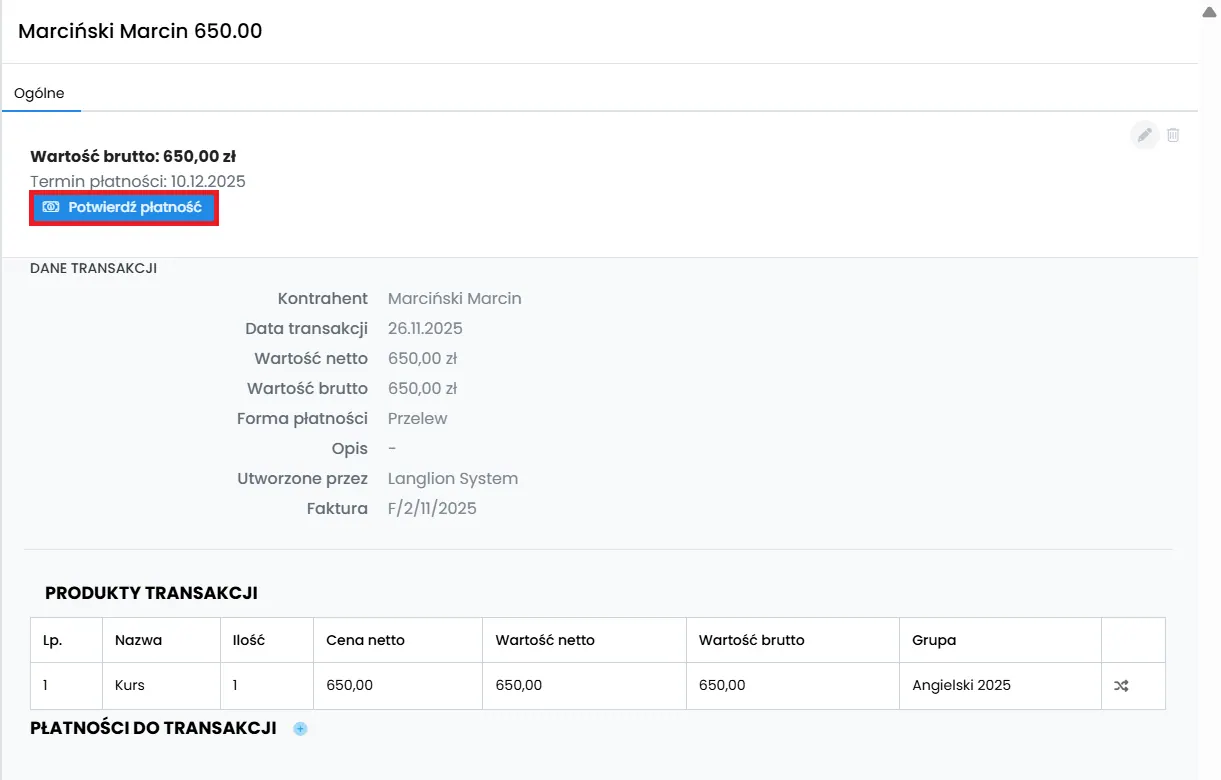
For a transaction (payment) that has not been paid yet, you can enter the payment date, i.e. confirm the payment. To confirm the payment of a transaction, click the "Confirm payment" button and enter the date the transaction was paid (today's date is shown by default).
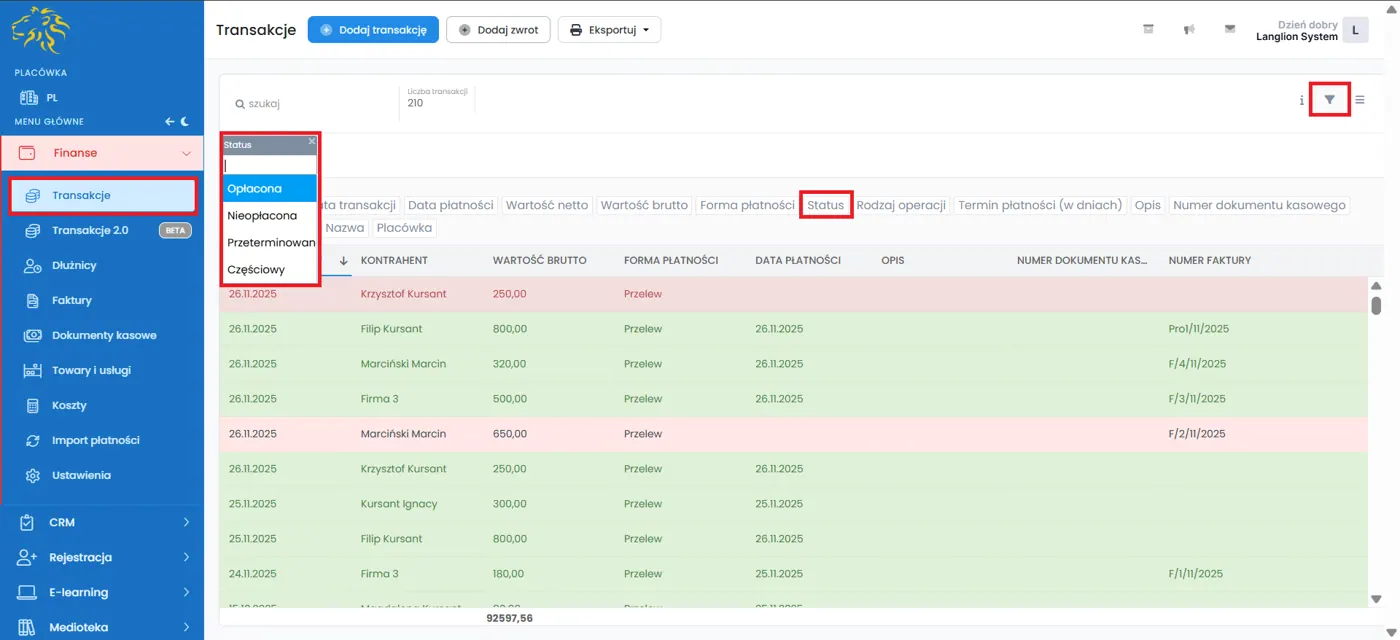
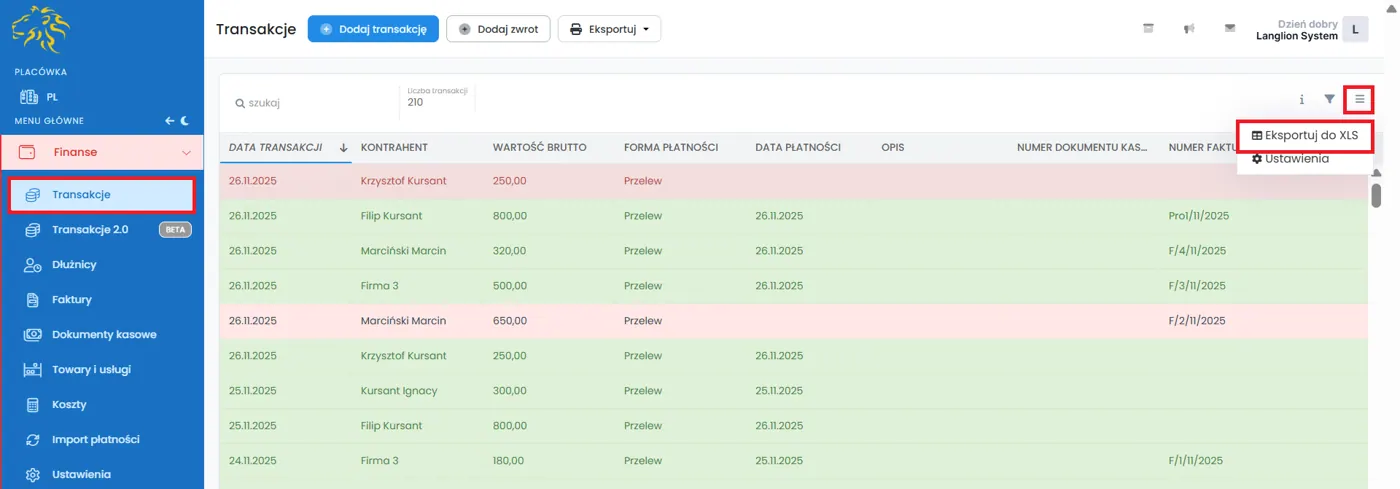
You can easily prepare a summary of unpaid transactions. To do this, click the "Transactions" tab in the "Finance" module. Then click the "Filters" button above the list, choose the "Status" filter and tick "Unpaid". If the summary should include all payments that are still due, also tick "Partly paid" and "Outdated".
Rows on the transaction list can be coloured by payment status: green – paid, yellow – partly paid, pink – unpaid, red – overdue (outdated). To turn this on, open "List settings" (the icon next to the "Export" button) and use "Color rows" – "By payment status". The colour follows the status, so after the payment is confirmed the row turns green.
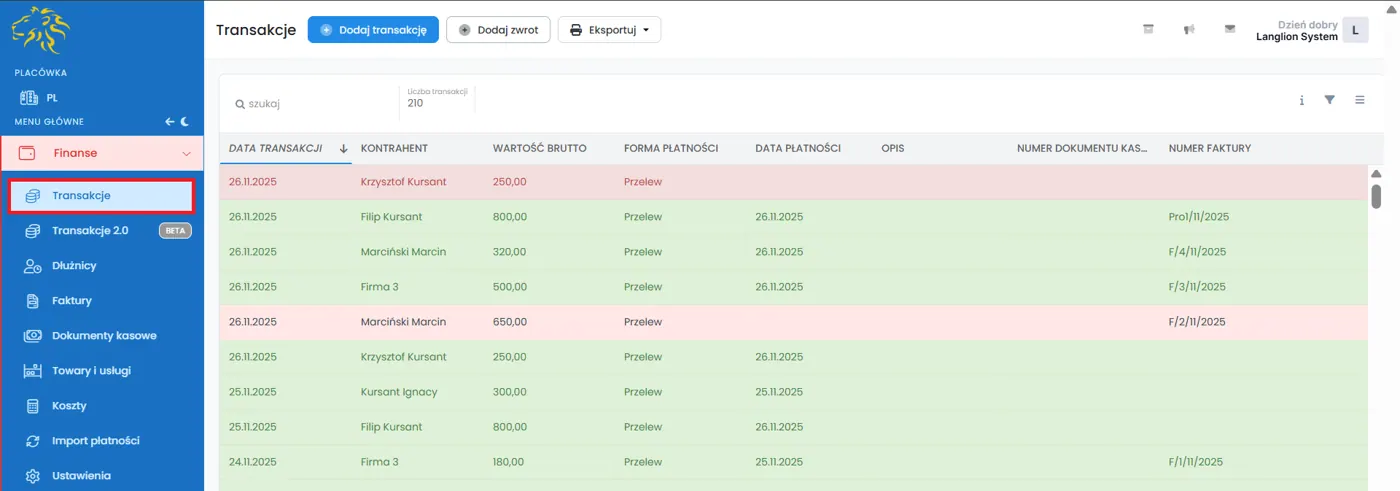
Done, the filters have picked out the unpaid transactions. Now prepare their summary: click the "Export" button and, in the "Transactions" section, choose "Export to XLS" (or "Export to CSV"). The file contains the transactions shown on the filtered list, with the columns set on the list. The "Transactions daily" section gives you the takings broken down by day.
You confirm the payment of an invoice in a slightly different way.
How to do it?
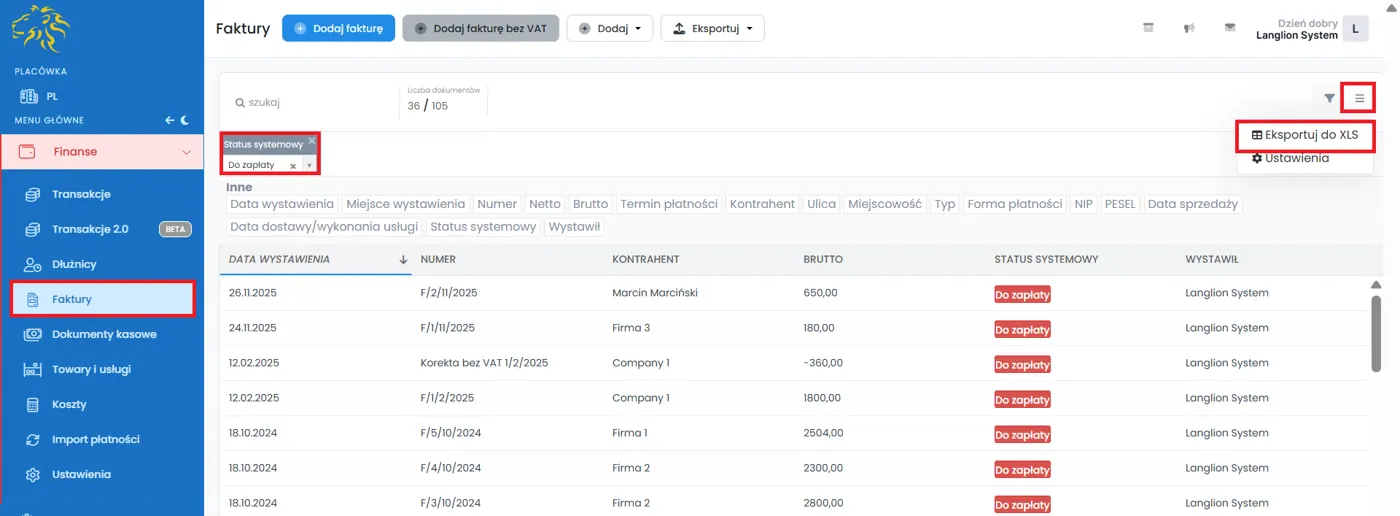
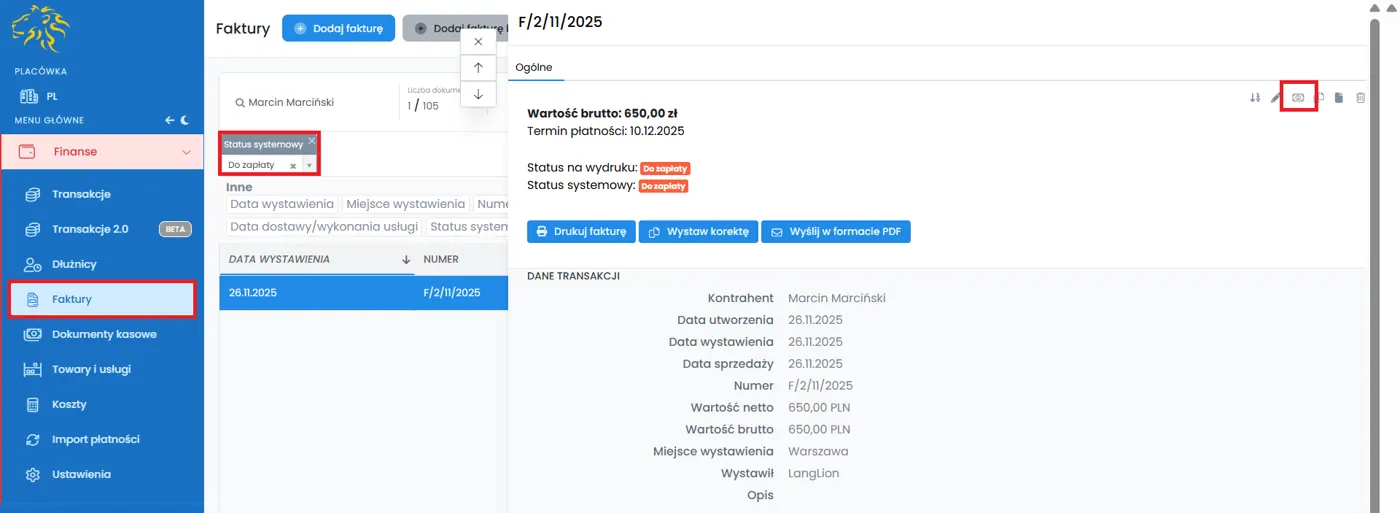
You can also filter the invoice list by status (the "System status" filter), e.g. "To be paid".
To confirm that an invoice has been paid, simply go to the "Finance" module and select the "Invoices" tab. Then, after selecting the invoice, click the banknote icon.
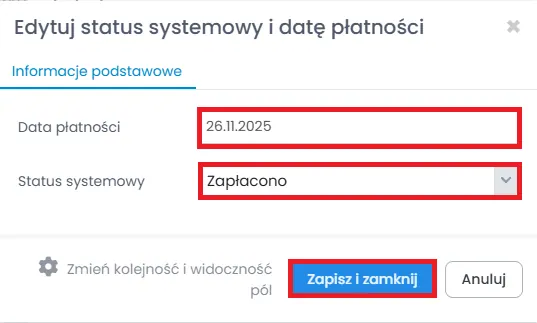
In the edit window, enter the payment date (today's date is shown by default), change the status to "Paid" and save the changes.
Prepare a summary of unpaid invoices.
To do this, click the "Filters" button above the invoice list, choose the "System status" filter and tick "To be paid".
Then click the "Export" button and choose "Export to XLS" (or "Export to CSV") to get the summary as a spreadsheet.