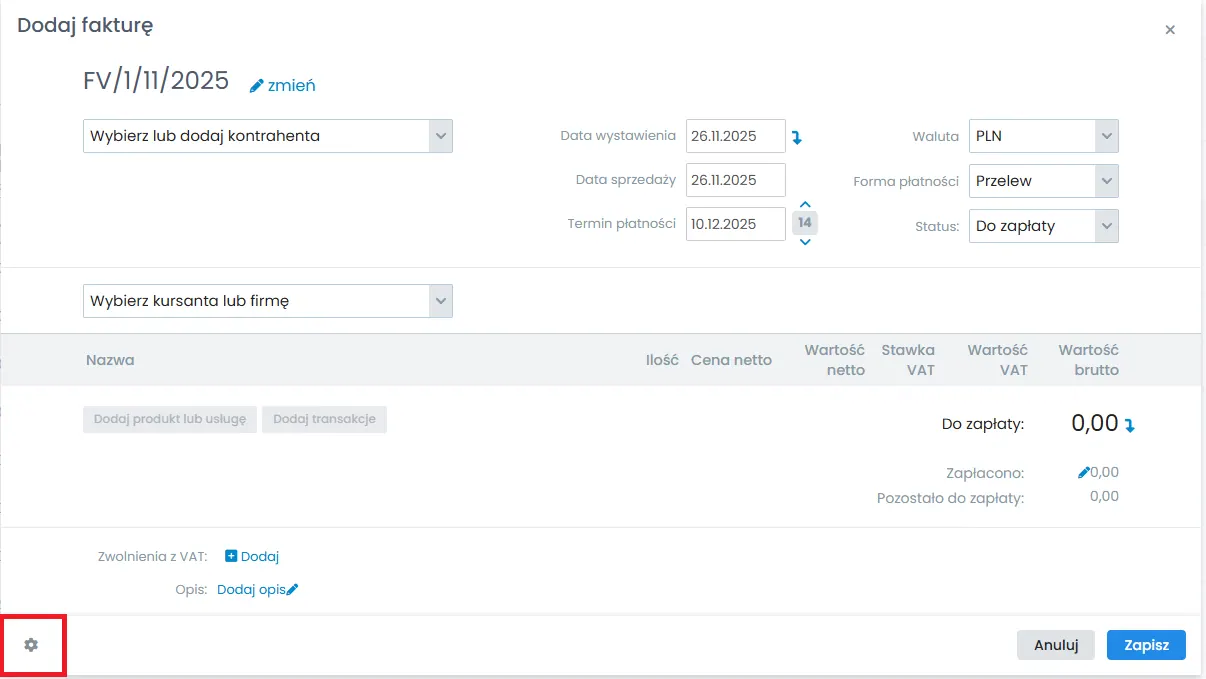
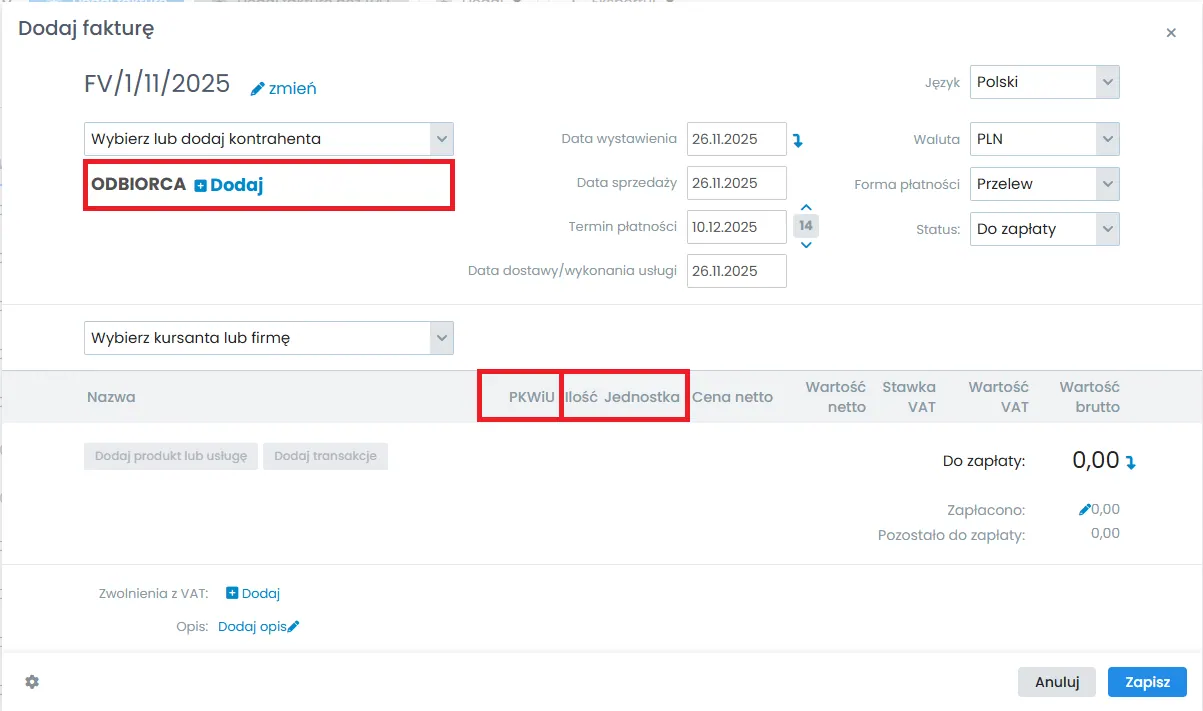
By default, the system shows a basic form for adding transactions and invoices. However, some schools need to include additional information about the item or add recipient details on the invoice.
To do this, turn on the relevant settings. These settings are saved per user, which means that if one administration staff member turns them on in their view, other people will not see them automatically. Each person has to make the changes themselves after logging in.
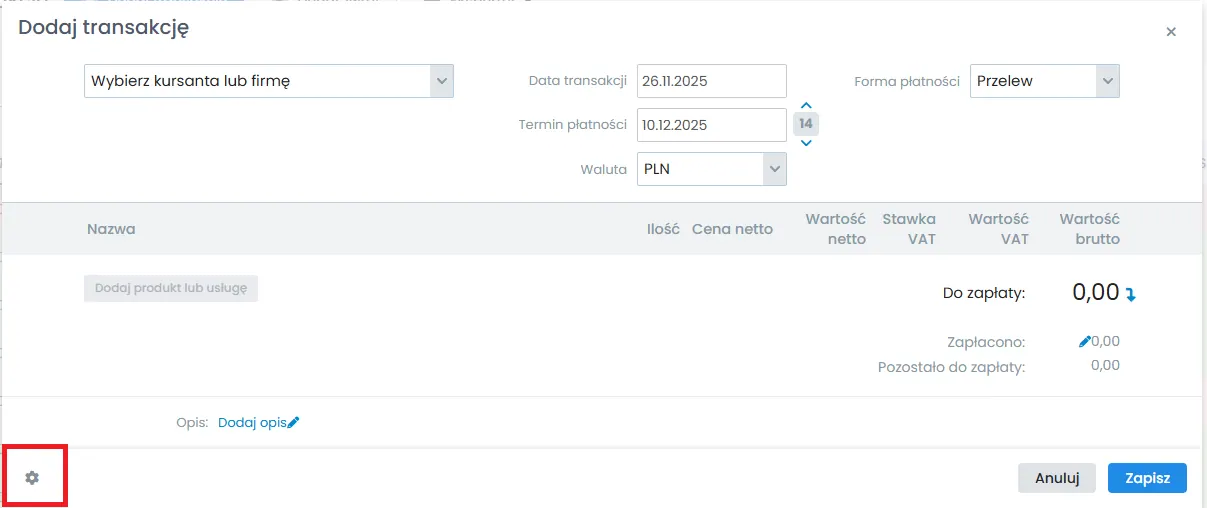
After clicking "Add transaction", select the settings icon in the bottom left corner of the form. Tick the data you want to be added to the transaction (PKWiU number, unit) and save the changes.
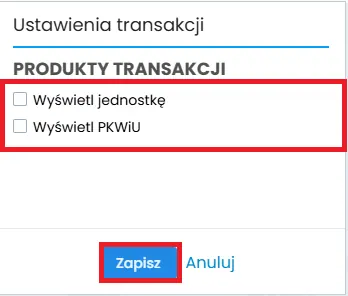
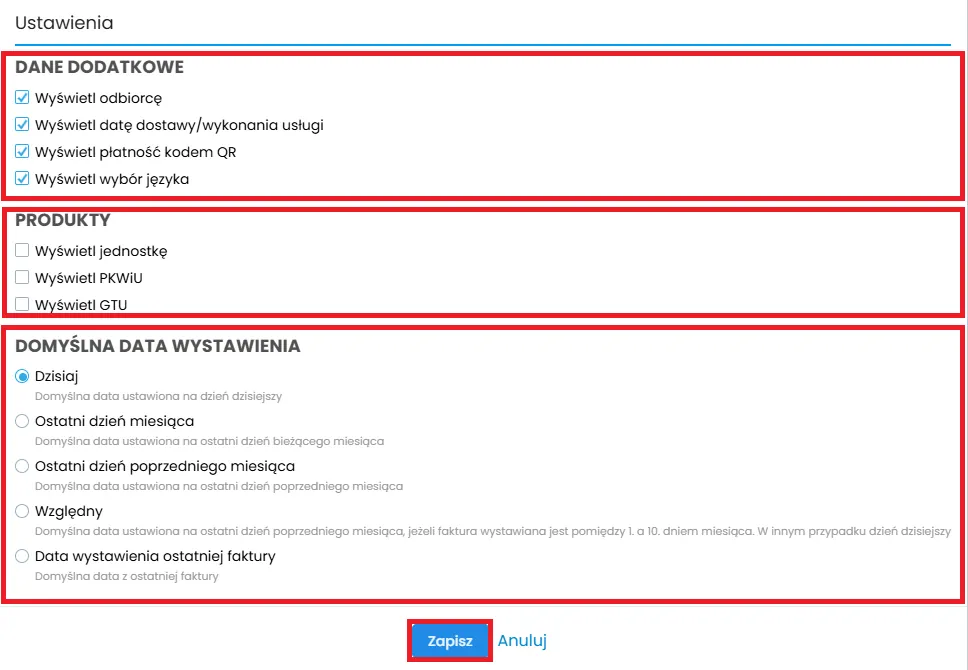
After clicking "Issue invoice" or "Issue invoice without VAT" select the settings icon in the bottom left corner of the form. Tick the data you want to be shown on the invoice and save the changes:
- additional data – Display recipient, Display date of delivery / completion of service, Display payment with QR code, Display language select, Display orders, Display JST (local government units), Display GV (VAT group),
- products – Display unit, Display PKWiU, Display GTU,
- Default date of issue.