
In the LangLion Platform, you can also issue invoices to companies. Invoice is not only issued for classes in corporate groups, but also for other products or services such as a book or translation.
To issue an invoice to a company:
1. Click on the Companies tab in the Administration menu.
2. Select the company you want to issue an invoice and go to the Payments tab.
3. If you have completed the settlement without adding a transaction, click on Add transaction. If you’ve added a transaction before – skip this step and go straight to issuing invoices.
You can also issue an invoice right away without the need to add transaction first because the transaction will be added automatically once you save the invoice. Below we have just presented this option because it is the easiest and fastest 🙂
Select Issue an invoice or Issue an invoice without VAT. If proforma invoices are enabled, the Issue proforma invoice button is also available.
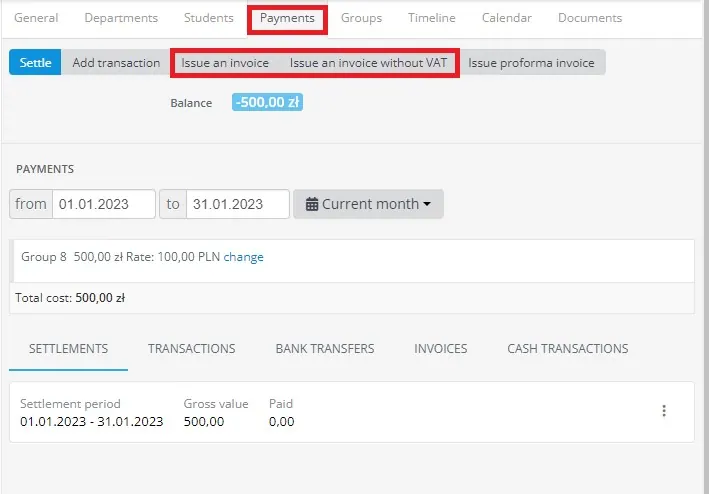
4. Set dates, payment method and click Add product or service
Remember that in the Finance module settings you can specify an automatically assigned payment due date if you want it to be different than 14 days.
If you want the invoice to show such data as PKWiU, unit, date of delivery/service or recipient’s data, then you can enable it in the lower-left corner of the form.
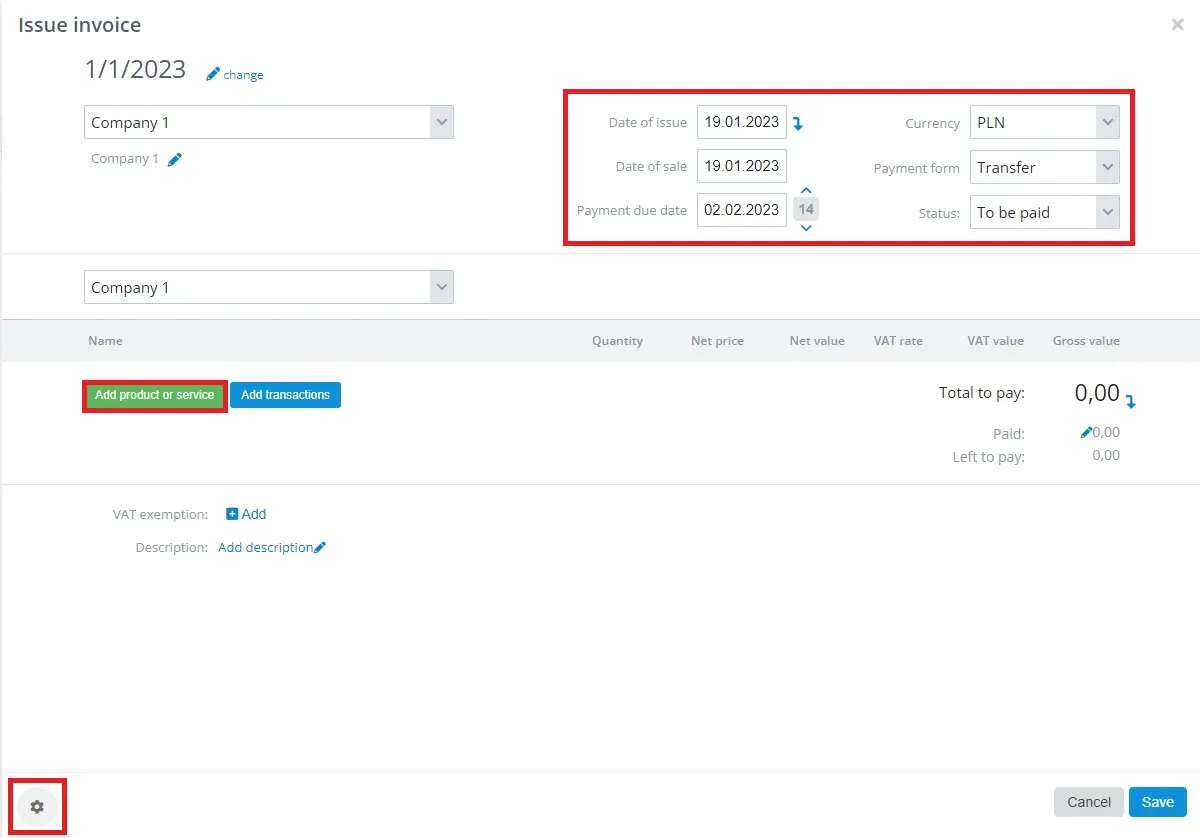
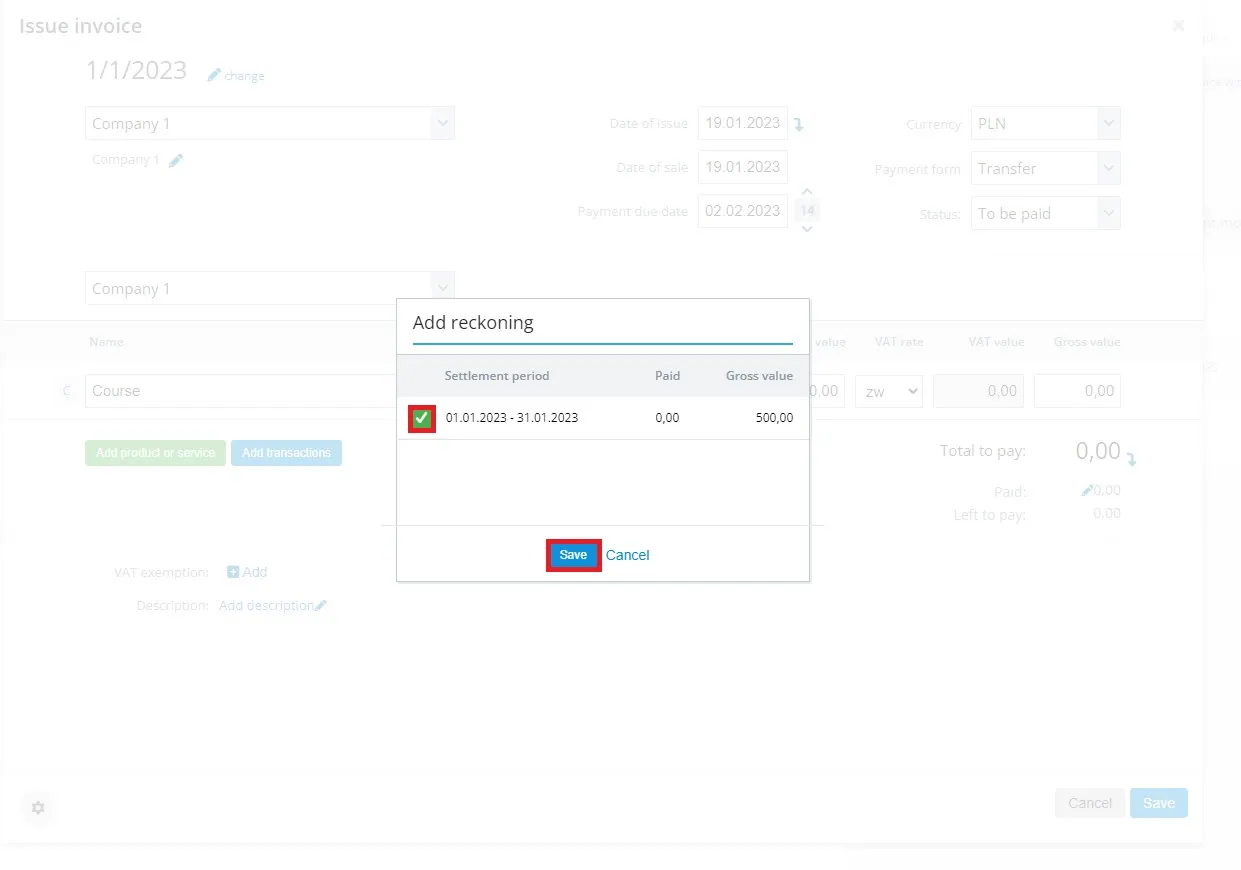
From the list of products, select the course product and in the new window indicate which settlement should be included in the invoice.
You can also place an annotation on tax exemption and an additional description (note) on the invoice.
5. Click Save to save the changes.
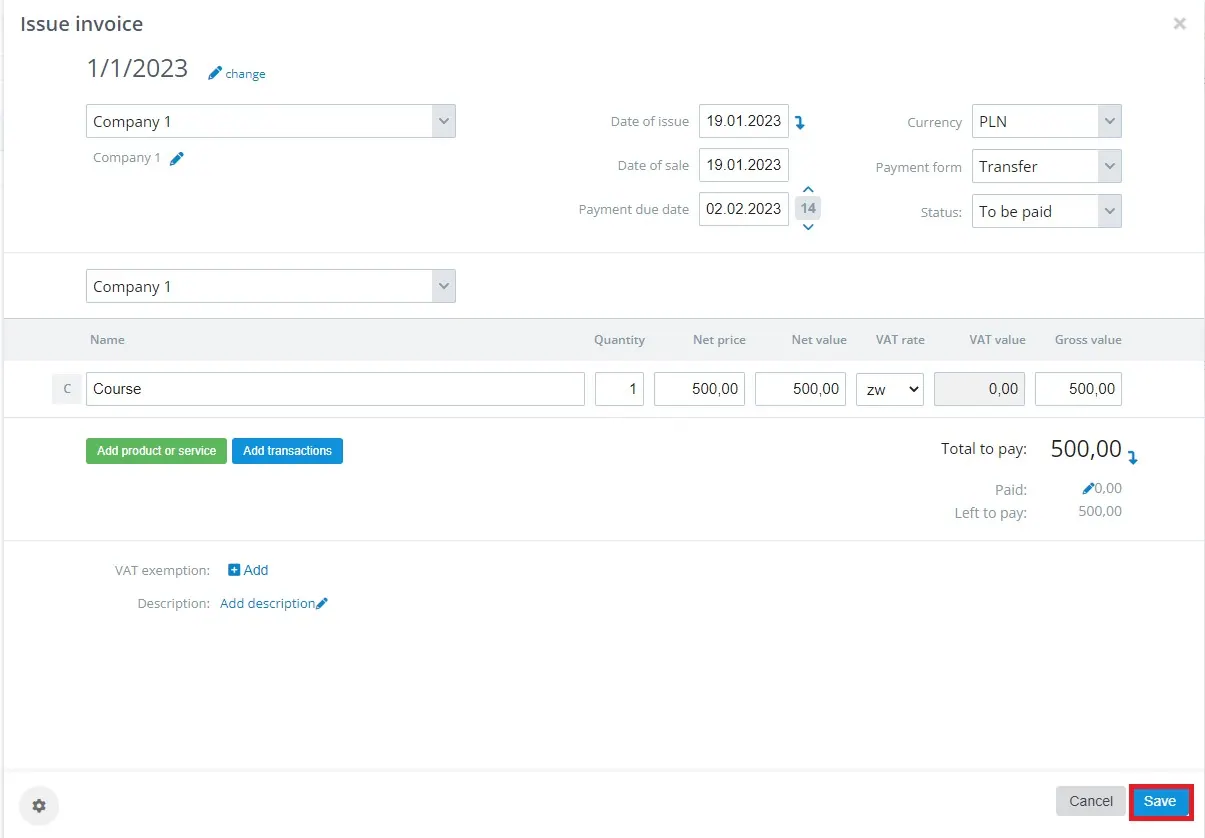
Invoice for the company was issued. It will be visible in the manager panel of the company under the Settlements tab.
If the company is billed hourly, the invoice also contains an attachment with reckoning details. It contains data of the groups to which the settlement applies, date range, length of the unit, their number, class statuses and summary of rates.
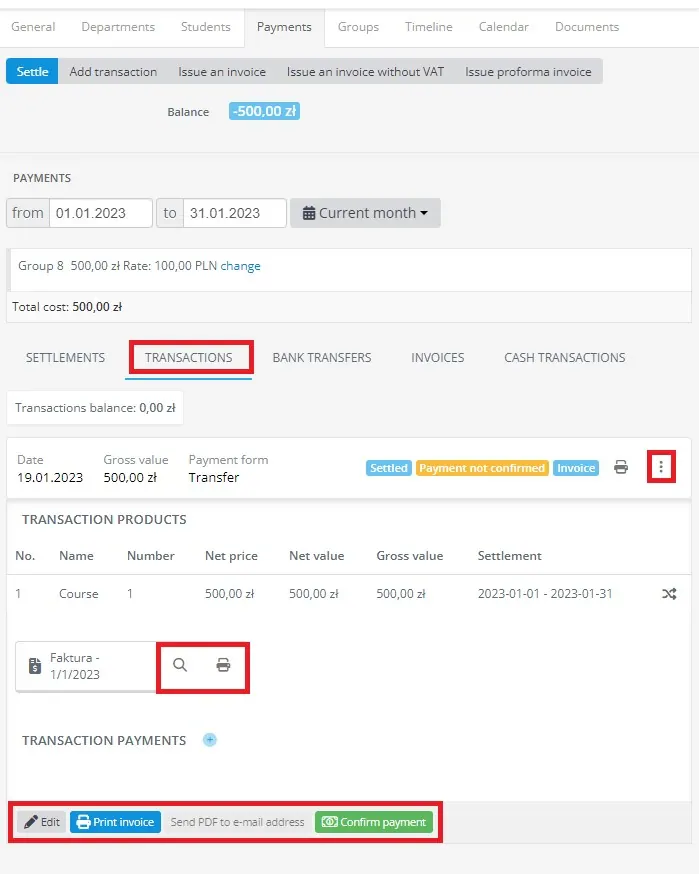
From the administrator’s side, in the Transactions tab, all company transactions will be visible along with information about their status, annotation whether they are related to the settlement and whether an invoice was issued to it.
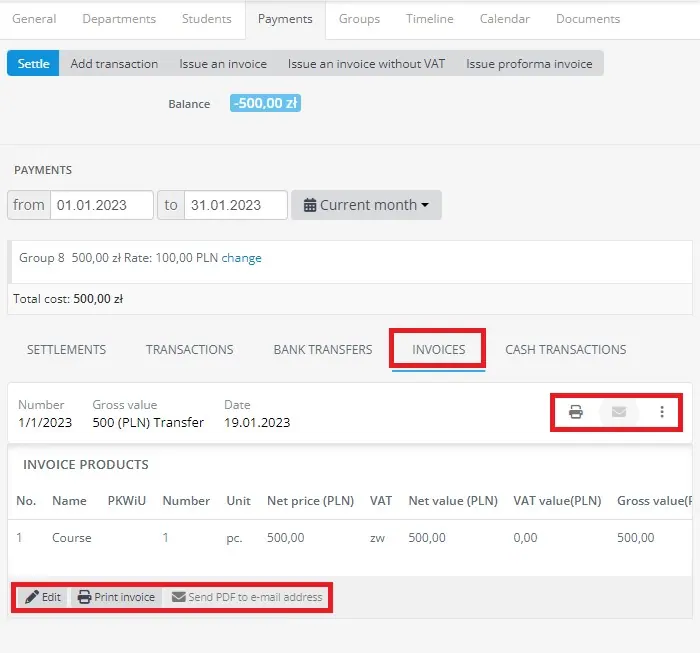
To view the list of invoices issued to the company, select the Invoices tab. From this level, you can also print the invoice or send it in .pdf format to the company’s email address. When sending the invoice by email, choose Send the invoice only or Send the invoice with settlement details.
Email reminders about upcoming payment due dates – for companies
If you use the Finance module, the system can automatically remind companies about an approaching invoice due date. To turn it on, go to Finance → Settings → Automatic notifications. In the Upcoming payment reminder card, turn on Notification for companies about approaching payment due dates. and in the Days before due date field choose how many days before the due date the reminder should be sent (you can choose several days). Save the changes with Save. The settings are separate for each branch. More in Automatic notifications.