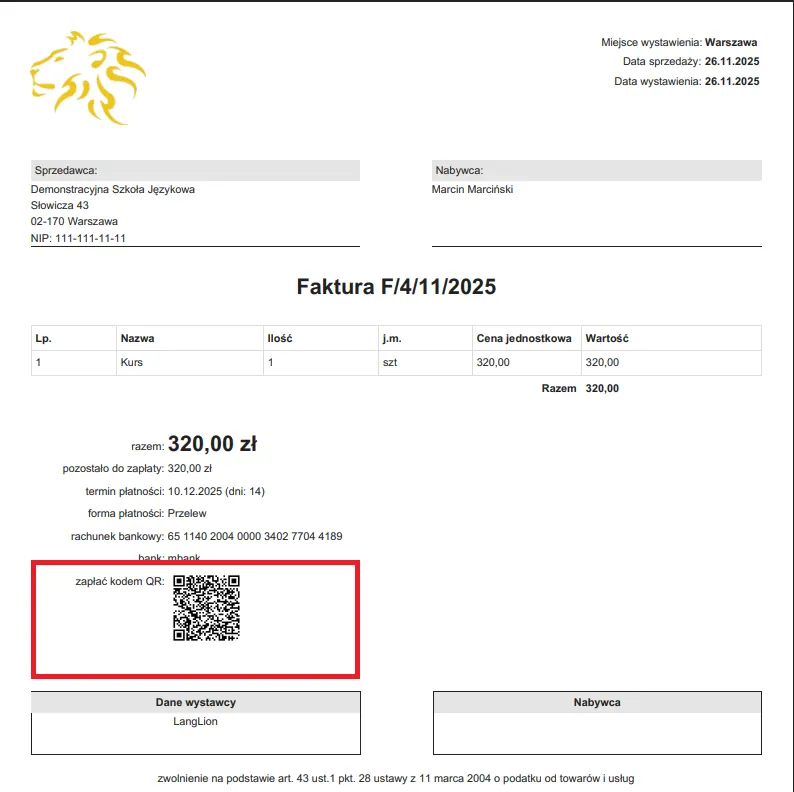
With the "Finance" module active, you can issue invoices with a QR code, so the student can pay the invoice quickly without copying the transfer details.
All they need to do is scan the QR code on the invoice with their bank's mobile app, and the transfer details will be filled in automatically.
How do I add a QR code to an invoice?
First, go to "Settings" of the "Finance" module, then in the "Issuer's details" tab use the "Default details" option to mark the details that should appear on invoices by default.
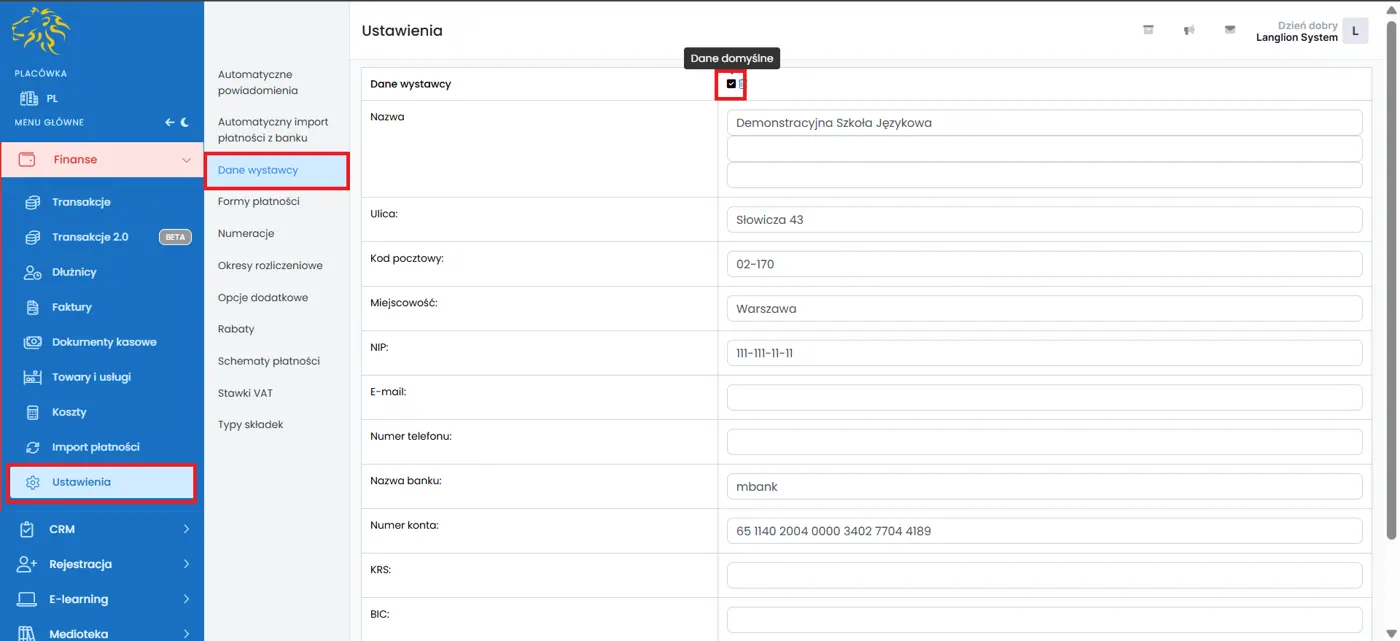
Make sure the bank account number and NIP are correct.
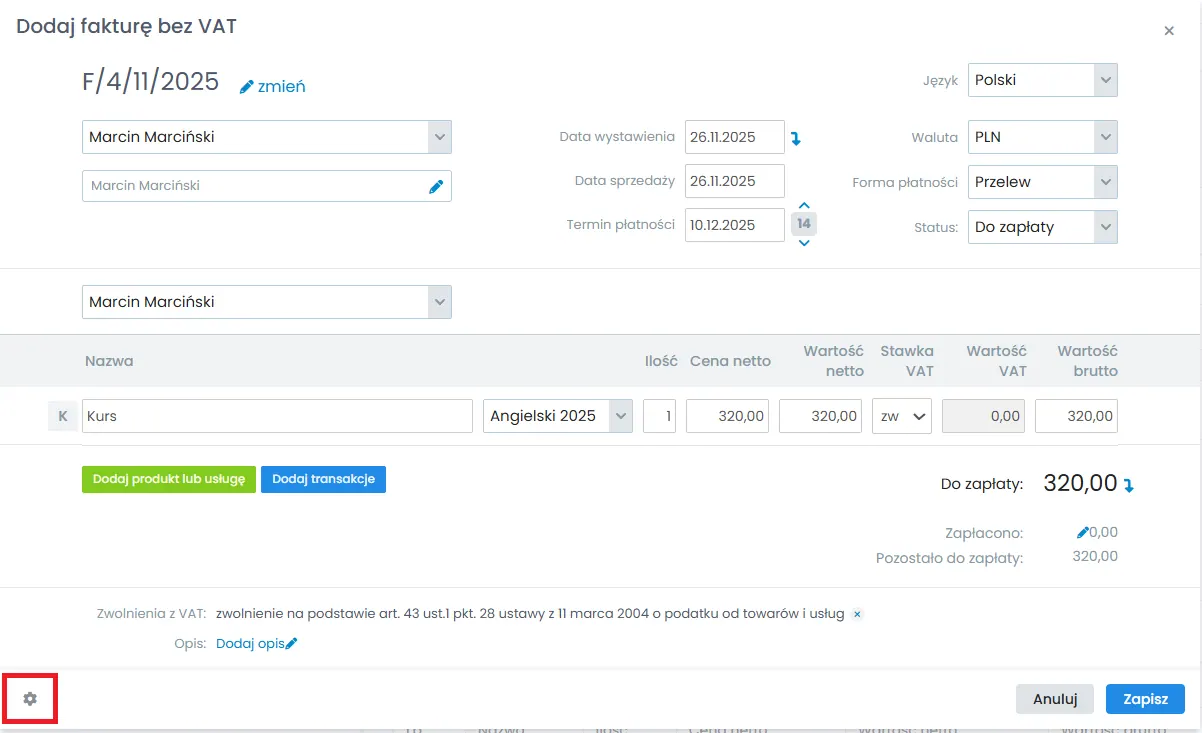
Then, when issuing an invoice to a student or a company, open the settings, select the "Show QR code payment" option and save the changes.
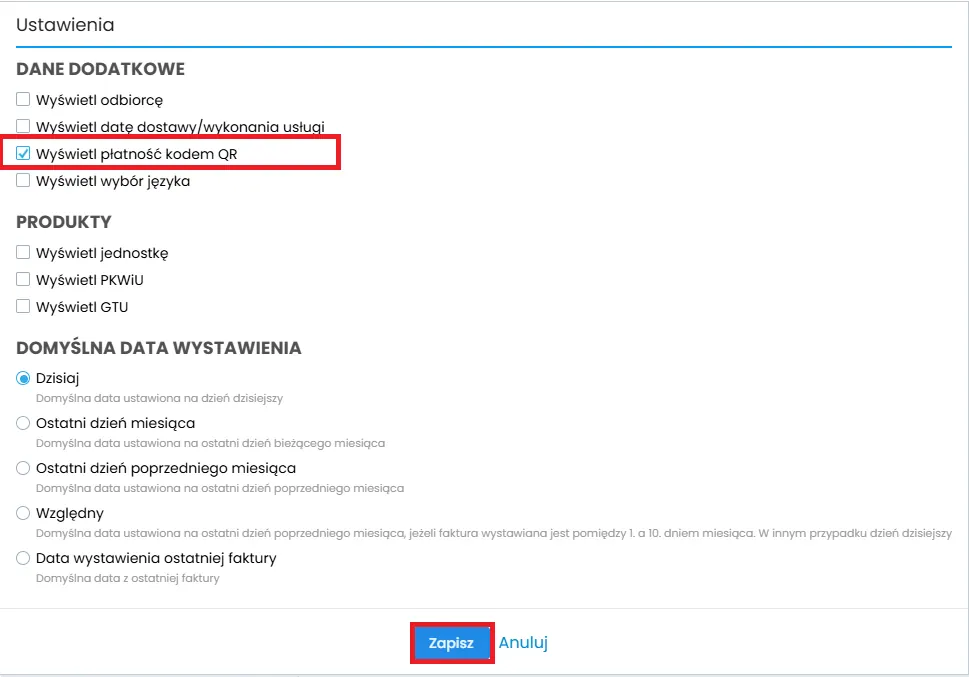
Done – once the invoice is issued, the QR code is visible on the printout, and the student only needs to scan it with their bank's app.