
How to issue an invoice correction?
First, make sure you have entered the numbering for corrections in the system settings. Please note that there are two types of such documents – correction (for invoices) and correction without VAT (for invoices without VAT). Each of them should have a separate numbering template.
See also the instructions for creating numbering.
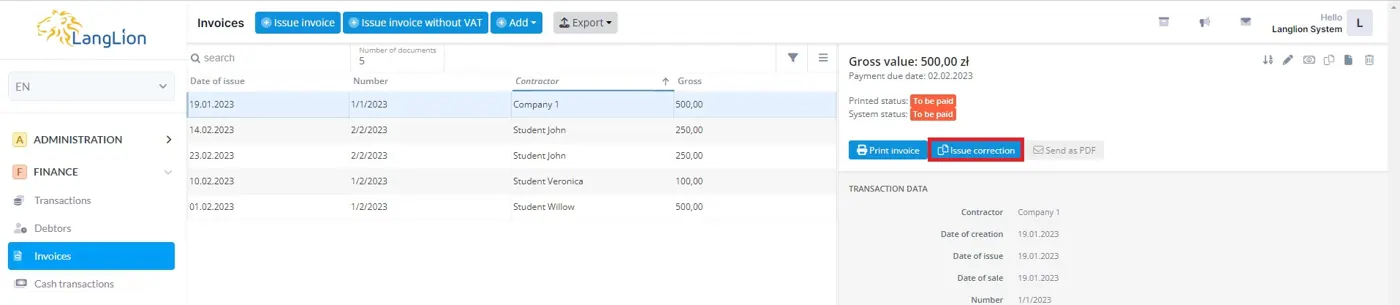
Now go to the Finance tab and select Invoices. Then, in the General tab of the selected document, click on the Issue correction button.
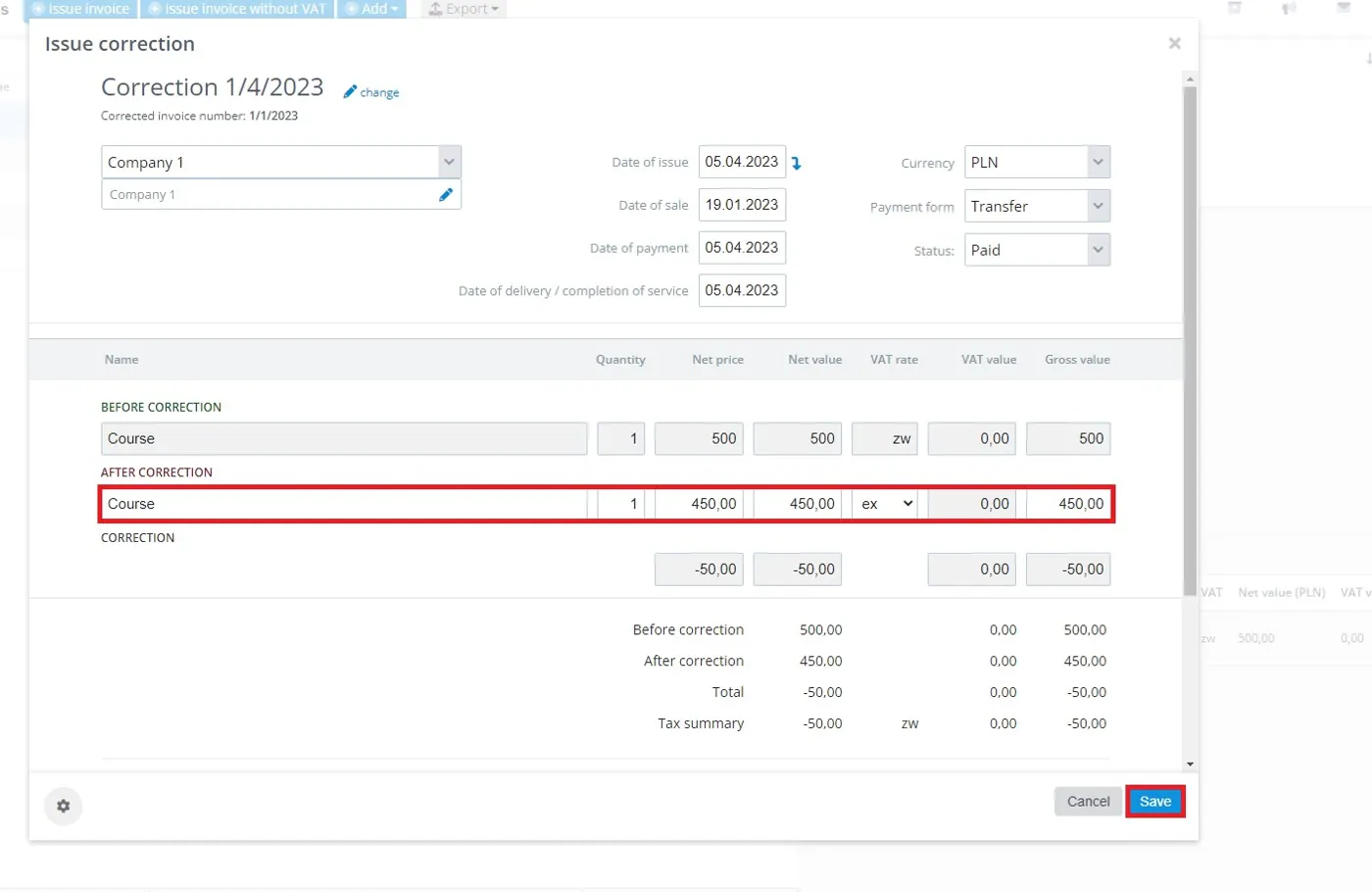
Set the dates in the correction edit window, enter the appropriate data in the After correction line. If you want to correct the entire invoice, enter 0 in the Gross value field, if you want to correct the VAT rate, select the appropriate one from the drop-down list, you can also change the product quantity, net price. If the amount after adjustment should be increased or decreased by some value, all you have to do is enter the final amount in the field Gross value.
You need to modify each product from the invoice separately.
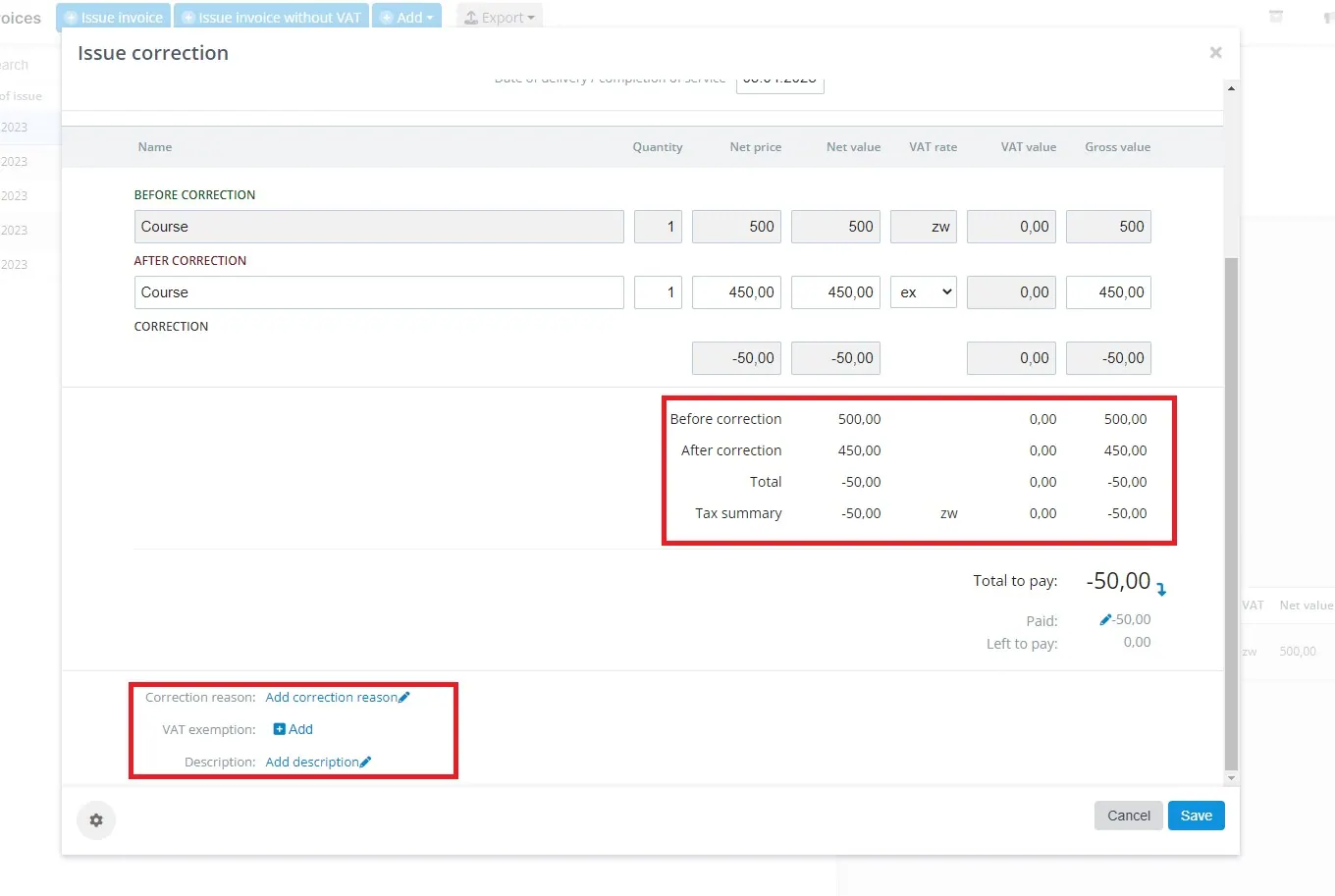
In the Correction reason field, enter the reason for the correction (the field is required). Below you can also choose an annotation about the basis of VAT exemption and an additional description (a note that will also be printed on the correction).
How do I mark a correction as paid?
In the correction summary, enter the amount that has already been paid (or refunded) in the "Paid" field, then pick the payment date from the calendar next to it. The calendar is active only when the amount in the "Paid" field is other than 0.
The correction PDF, like an invoice, shows the paid amount with the paid date. If the correction is partly paid, it also shows the "amount due", and if it is not paid – the due date. A correction with a value of 0 (e.g. one that only changes the buyer's details) does not show a paid amount.
To confirm the correction, click on the Save button.
Now the correction has been added to the system and with it, the system automatically added a refund/surcharge as a separate transaction.
If you have completely reset the invoice and want to add a new document, go through the process of issuing the invoice from the beginning – read our instruction on creating invoices on the LangLion Platform.