
The student paid with one bank transfer, but has two transactions (a doubled payment) for the same month in the system? Usually one was added manually and the other came from the transfers import. Below you will find out which one is not needed and remove it.
Why is a second transaction created?#
The transfers import (manual from a file and automatic from the bank) pays a student's transaction by itself only when the student has an unpaid transaction for exactly the same amount as the transfer. In any other case the transfer does not "see" the existing transaction, so a new one is created. The most common causes:
- A payment added manually before the import. A parent sent a transfer confirmation and the payment was added in the student's "Payments". When the transfer came from the bank, the transaction was already paid – with "Automatically create transactions" switched on, the import added a second one (transfer status "auto transaction"); without this option the transfer went to "Solve manually" and someone clicked "Add transaction".
- "Add transaction" instead of "Cover transactions". The student had a transaction to be paid for a different amount than the transfer, so the import did not match it. "Add transaction" creates a new transaction and the old one stays unpaid – the student has two transactions for the same period.
- The same transfer imported twice. E.g. a bank file uploaded for a period that the automatic import has already downloaded, or two files with overlapping dates. A transfer with identical data gets the "duplicate" status and does not create a transaction until you handle it. If the bank gave a different date in the second file, the system will not recognise the duplicate and will process the transfer a second time.
- A transfer for siblings. You split the transfer amount between the children by adding each of them a transaction for their part. Adding one child a transaction for the whole amount and then a second transaction results in an overpayment.
How do I check which transaction is not needed?#
- Check in your bank whether there was only one transfer.
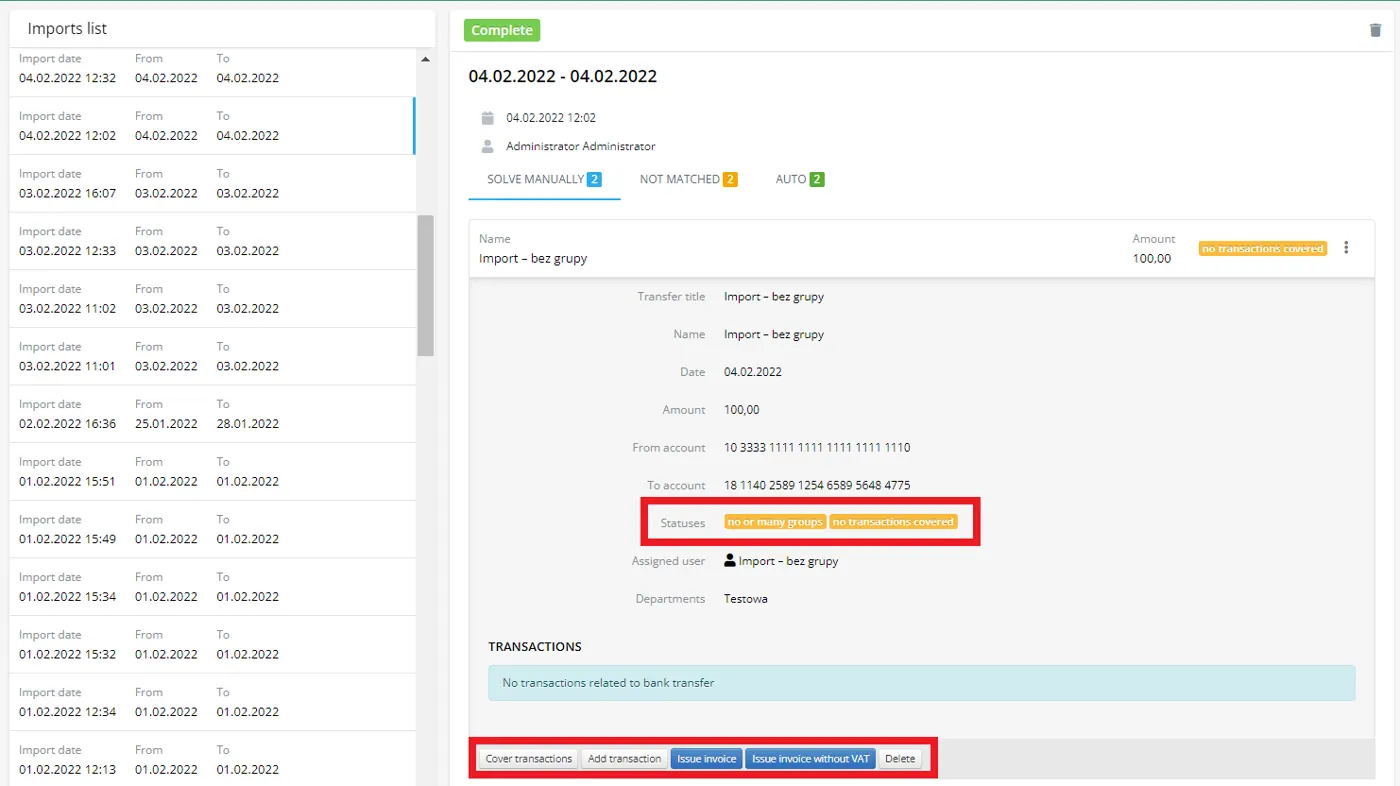
- Select a department (not "All departments" – otherwise the transfer has no buttons). Go to "Finance" → "Bank transfers import", choose the import with the day of the transfer and find the transfer in the "Auto", "Solve manually" or "Not matched" tab.
- Click the "⋮" icon next to the transfer. The "Transactions" section shows the transactions related to this transfer; "Show transaction" opens each of them.
A warning icon next to the "Transactions" heading with the message "Transactions sum is not equal to transfer amount" means that several transactions (or one for a different amount) are related to the transfer – their total differs from the transfer amount.
Rule: keep the transaction related to the transfer and remove the other one – usually the one added manually.
How do I remove the transaction that is not needed?#
- Go to "Finance" → "Transactions" and click the transaction you do not need in the list (or open it with "Show transaction" in the transfer details).
- In the transaction panel, click the bin icon "Remove".
- Confirm the message "Are you sure you want to delete transaction?" with "Delete".
Done! The transaction's payments are removed together with it, and the system recalculates the student's instalments and balance.
If an invoice (or a correction) has been issued for the transaction, the bin icon is inactive: "Cannot remove transaction because it's already refunded or connected to invoice or transfer import". In that case remove the other transaction – the one without an invoice – or write to us in the chat.
I removed the transaction from the import and the student has an unpaid transaction. What now?#
If the removed transaction was the one created from the transfer, the transfer again has an amount to settle ("Left") and buttons to handle it. Open the transfer in "Bank transfers import", click "Cover transactions", tick the student's unpaid transaction and save. If the transfer is larger than the ticked transactions, the rest goes to the student's balance as an overpayment.
The transfer is in the import twice. How do I remove the duplicate?#
- If the duplicate already has a transaction, first remove it in "Finance" → "Transactions" (as above) – deleting the transfer removes only the payments, and the transaction itself would stay unpaid.
- In "Bank transfers import", click the "⋮" icon next to the duplicated transfer (status "duplicate"; "Duplicated in" in the details shows the import with the first transfer).
- Click "Delete" and confirm "Delete bank transfer?".
How do I avoid duplicate transactions?#
- If you use the transfers import, do not add payments for bank transfers manually – wait until the transfer comes from the bank. The automatic import downloads payments once a day.
- When the student has a transaction to be paid, choose "Cover transactions", not "Add transaction".
- Before you click anything for a transfer, check the "Transactions" section and the "Left" amount – if the transfer is already settled, do not add another transaction.
- While the automatic bank import is running, do not upload a transfers file for the same period and the same bank account.
- Split a transfer for siblings into parts – each child gets a transaction for their own amount.
Frequently asked questions#
One transfer created two transactions, but I did only one action. What should I do?
Do not delete the transfer from the import. Write to us in the chat: give the import date and the student, and attach a screenshot of the transfer details – we will check it.
Can I change the amount of a transaction created from the import?
No. A transaction created from a transfer cannot be edited (except for its description) – you can only remove it and settle the transfer again.
Related articles#
- Transfers import – the "Auto", "Solve manually" and "Not matched" tabs, automatic creation of transactions and transfers for siblings
- What happens when student has an excess payment?