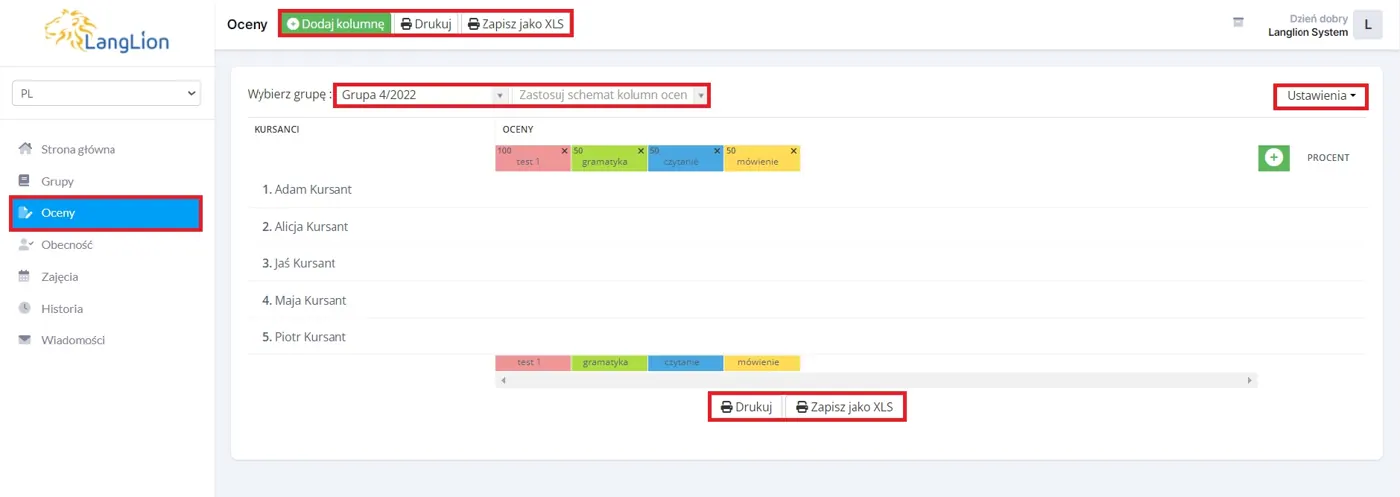
The "Grades" tab lets you view the grades given by the teacher and give grades to students yourself. You can also export a group's grades to a spreadsheet.
How do I enter grades?
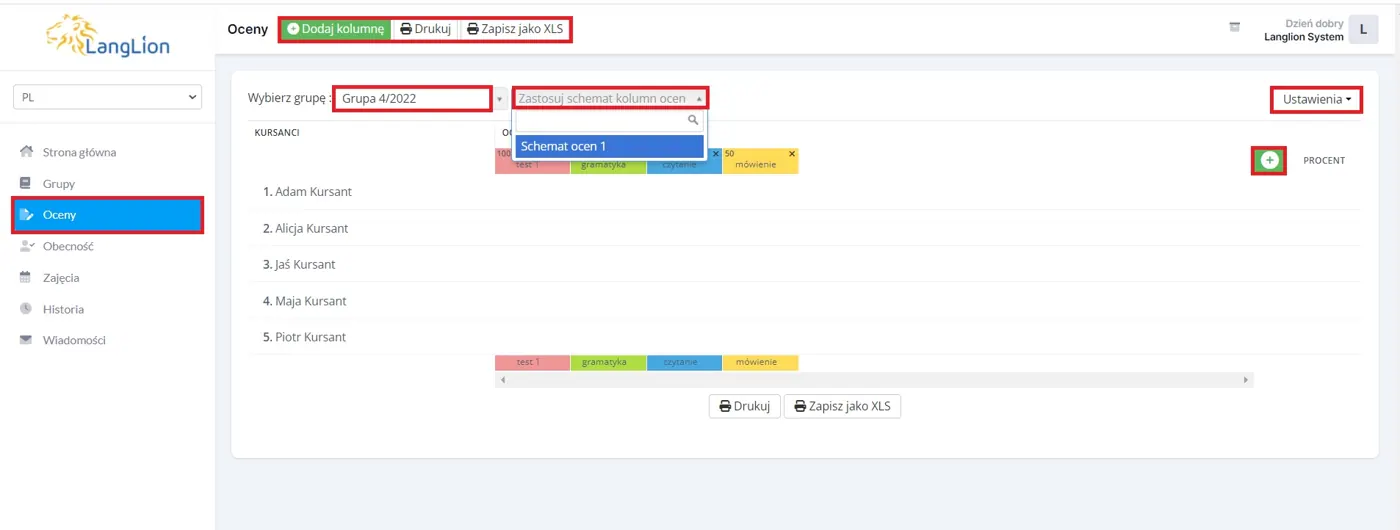
It is easy – choose the right group using the search box. The list of students in the group is then displayed. To enter grades, create a column: click on "Add column" or the "+" sign.
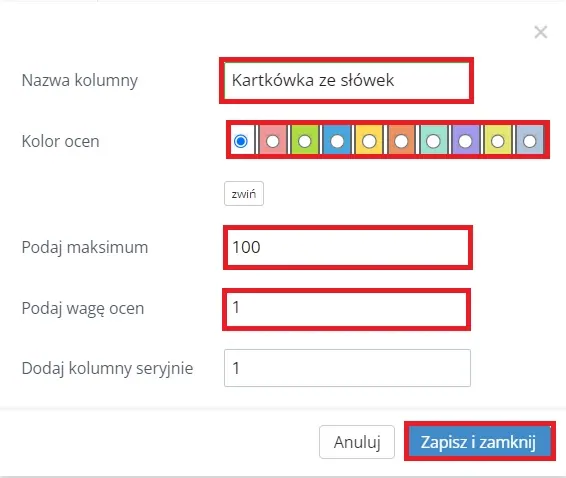
In the column editing window, enter its name (e.g. oral answer), set a colour (to make the view clearer) and enter the weight of the grades – this number is used to calculate the weighted average. If you want the system to calculate an arithmetic mean, enter a weight of 1. When you have finished, save the changes.
Done – the column has been added. Now you can enter grades.
Grades are saved automatically as soon as you enter them. If you make a mistake, you can always delete a grade and enter it again.
You can delete incorrect columns using the "X" sign in the column header. The last column (“Weighted average”, “Average” or “Percent” – depending on the grading settings) shows each student's result. You can export the grades table to a spreadsheet with the “Save as XLS” button.
The "Settings" button lets you configure how the grades table looks.