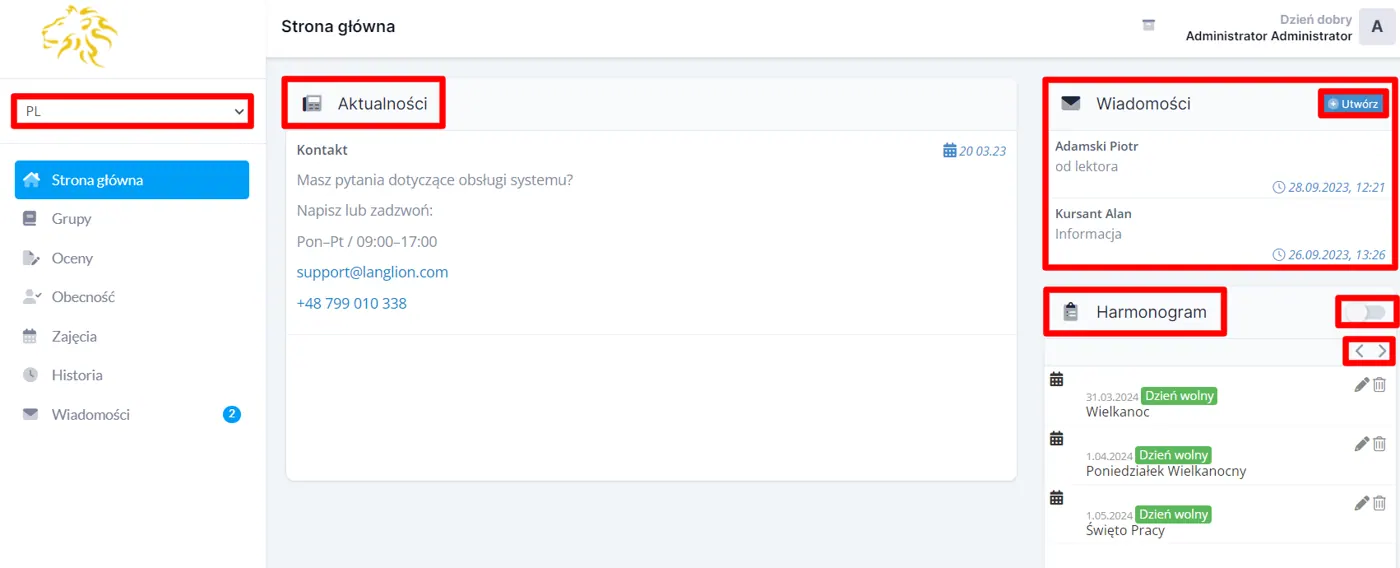
After you log in to your account, the first page you see is the "Home" tab.
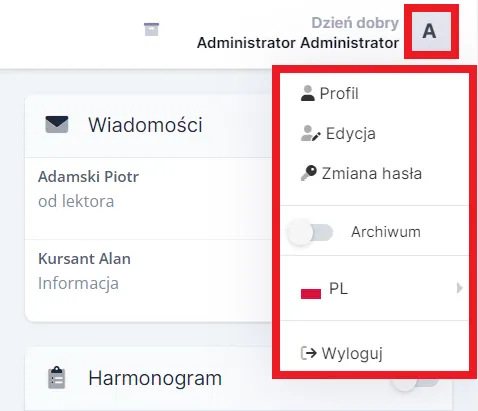
When you click the button with your user name in the top right corner, a menu appears with the following options:
- "Profile" – view the details in your profile,
- "Edit" – make changes to your profile. You can change your email address and phone number (administrators see this option only if they are allowed to change their own profile data),
- "Change password" – change your account password,
- "Archive" – turn on the Archive to display archived data,
- term selection (if the school has more than one term),
- An option to change the application language,
- "Logout" – log out of the application.
In the top left corner you can change the branch whose data you want to display, if your school is divided into branches.
In the middle of the main page you can see the news posted by the school.
On the right you will find "Messages".
In this box you will see unread messages sent to you. Each item shows the sender, the subject, and the date and time it was sent.
If you want to send a message quickly, click "Create".
The "Schedule" box contains information about days off and public holidays.
You can browse the schedule pages using the "<", ">" buttons, and display events that have already taken place by clicking "Show past events".