Sometimes you may need to cancel all classes on a given day. The LangLion Platform lets you cancel all classes in one place – the calendar. You do not need to switch between groups to cancel individual classes.
How do I cancel all classes?
It is easy – go to the "Calendar" tab and choose your preferred view: "Default", "Rooms", "Teachers", "Languages" or "Classes". Then set the calendar view to the selected day.
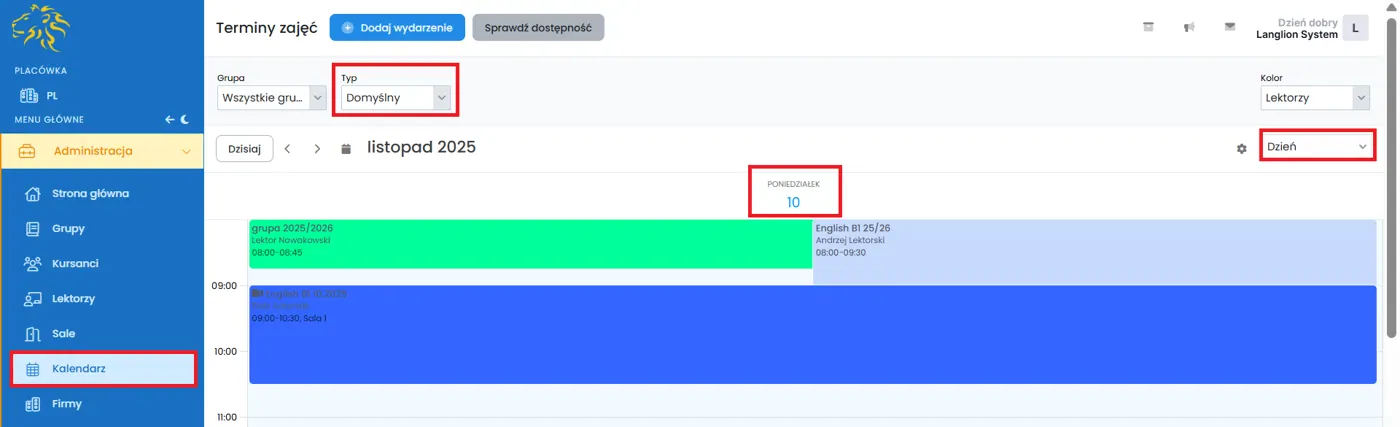
Done – the view is set. Now you can cancel the classes on that day.
How do I do it?
Simply click the selected classes to open the edit window. Click "Set status" and choose the class status.
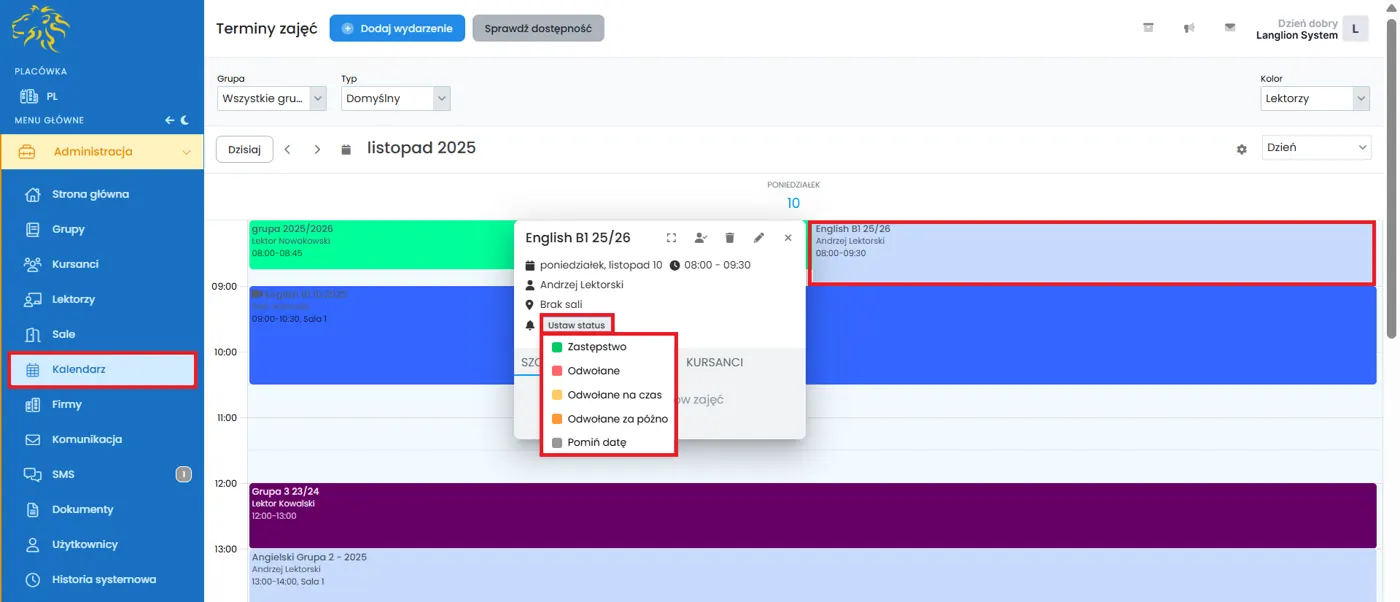
Repeat this for all classes in the calendar view.
If the classes disappear from the calendar after you set the status, the "Show cancelled classes" option is turned off. Select it and all cancelled classes will appear in the calendar.
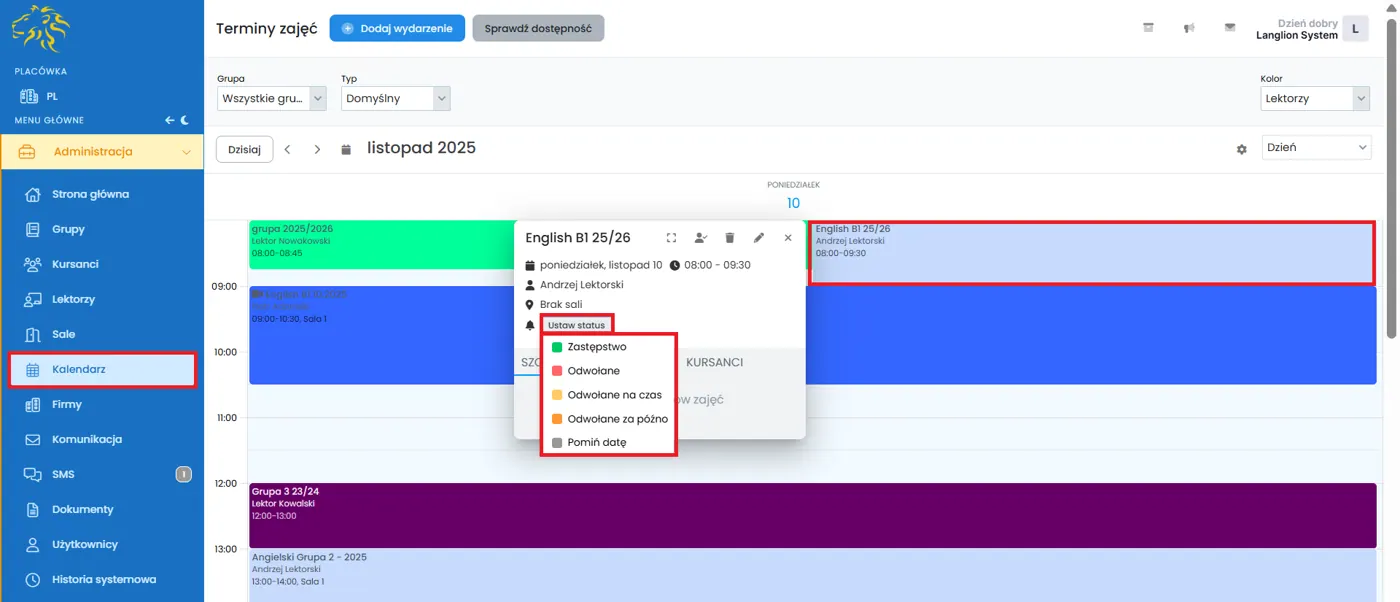
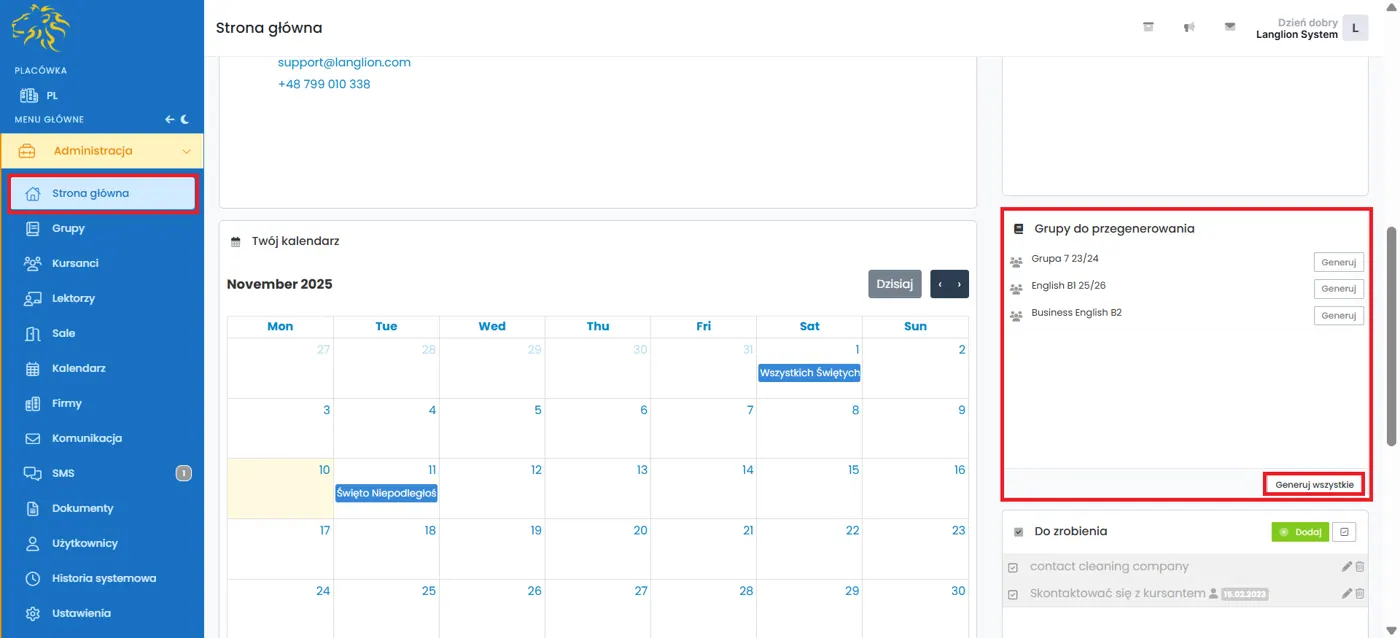
To regenerate classes in all groups where classes were cancelled, go to the "Home" tab and, in the "Groups to regenerate" section, click "Generate all".