In the “Security” tab you can adjust the password requirements for users and turn on multi-factor authentication, which gives extra protection to your administrator account and the accounts of other administration users.
How do I edit the password requirements?
If you want to change the password requirements, you can do it easily by going to the “Administration” module, the “Settings” tab, “Security” and “Passwords”.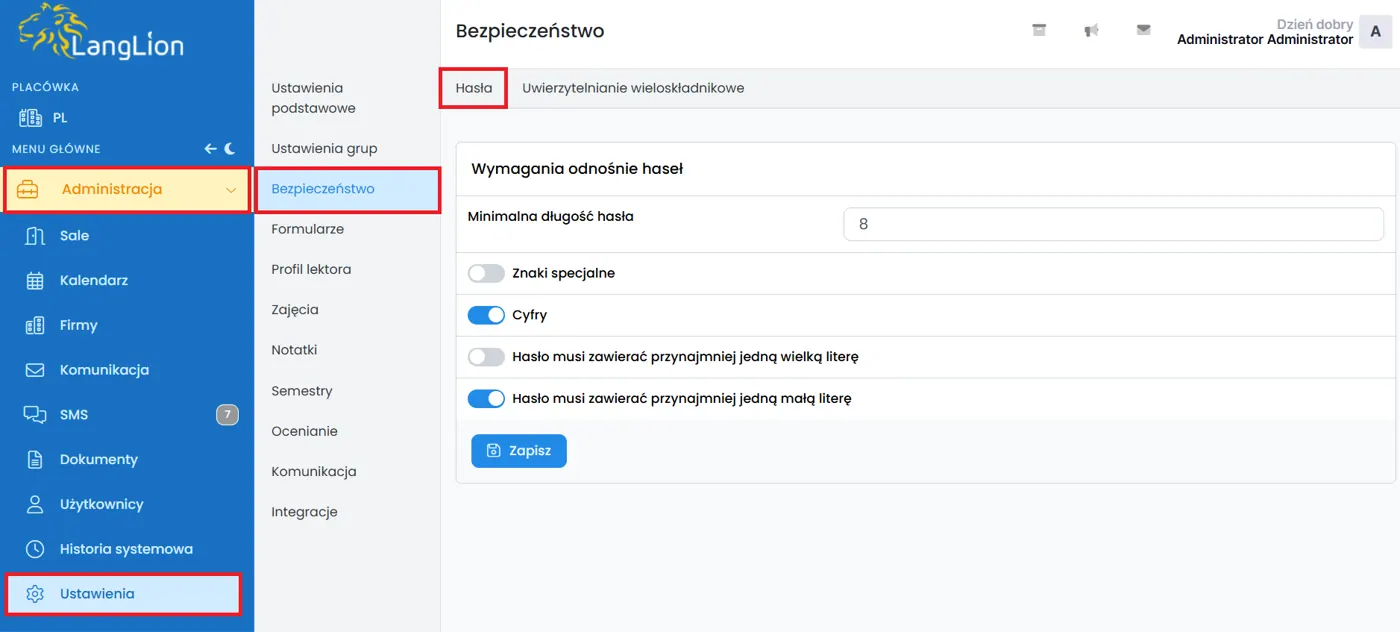
By default, a password must be at least 8 characters long and contain digits and at least one lower-case letter. If needed, you can adjust these requirements by choosing from the following options:
- Minimum password length
- “Special characters”
- “Digits”
- “Upper-case characters”
- “Lower-case characters”
How do I turn on multi-factor authentication for administration staff?
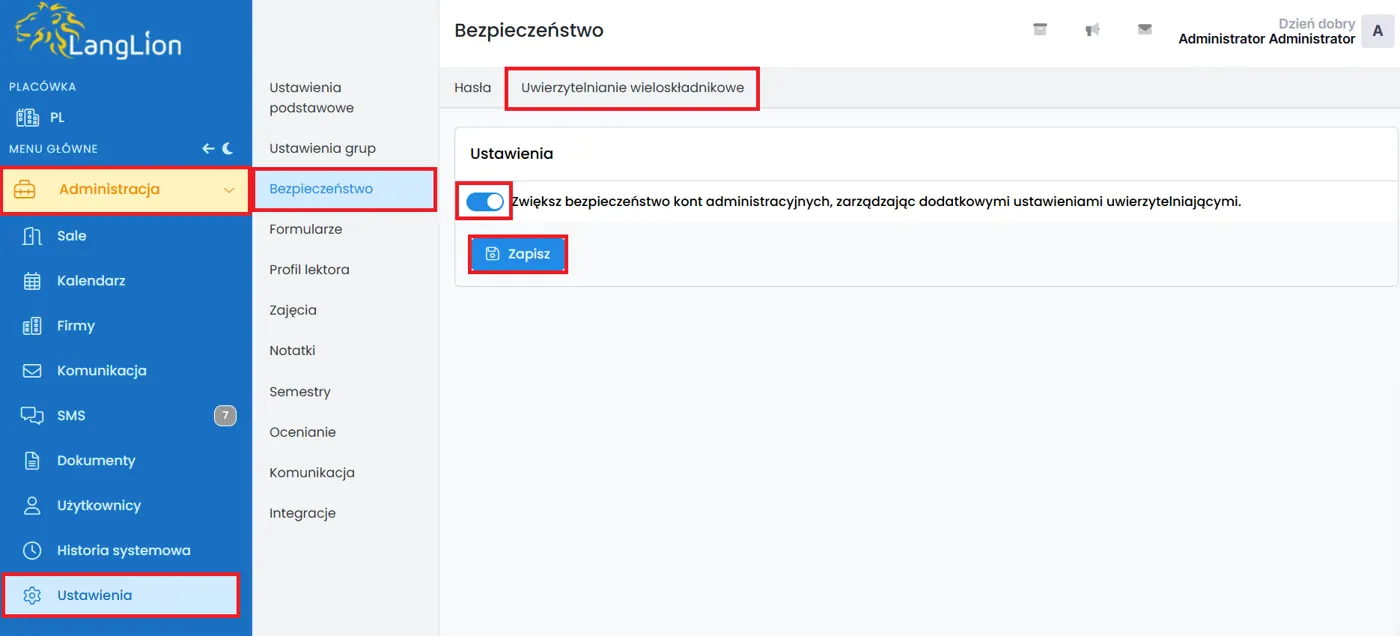
Multi-factor authentication (MFA) makes your account more secure, because in addition to the password the system will ask for an extra confirmation of the user’s identity.The option can be turned on by the superadministrator or by an administrator with the “Office settings management” permission. To do this:
- In the “Administration” menu, click “Settings”.
- Open the “Security” tab, then “Multi-factor authentication”.
- Tick “Manage two-factor authentication settings for administrators to control account security.” and click “Save”.
From now on, every administration user can turn on login with extra protection themselves.
How do I protect my account with multi-factor authentication?
It’s simple! Click the top right corner, choose the “Profile” tab and then “Security”.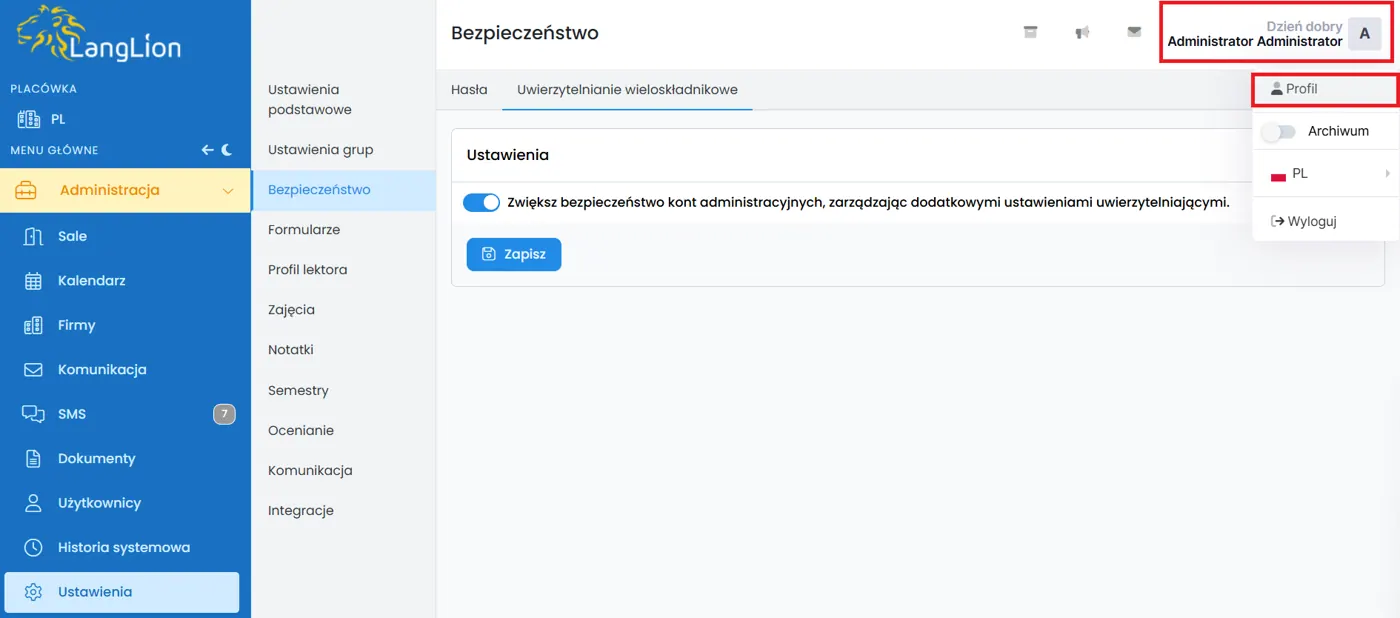
Scan the QR code shown on the screen with the Google Authenticator, Microsoft Authenticator or 1Password phone app. The app will generate a six-digit code. Enter it in the “Authentication code” field, then click “Save”.
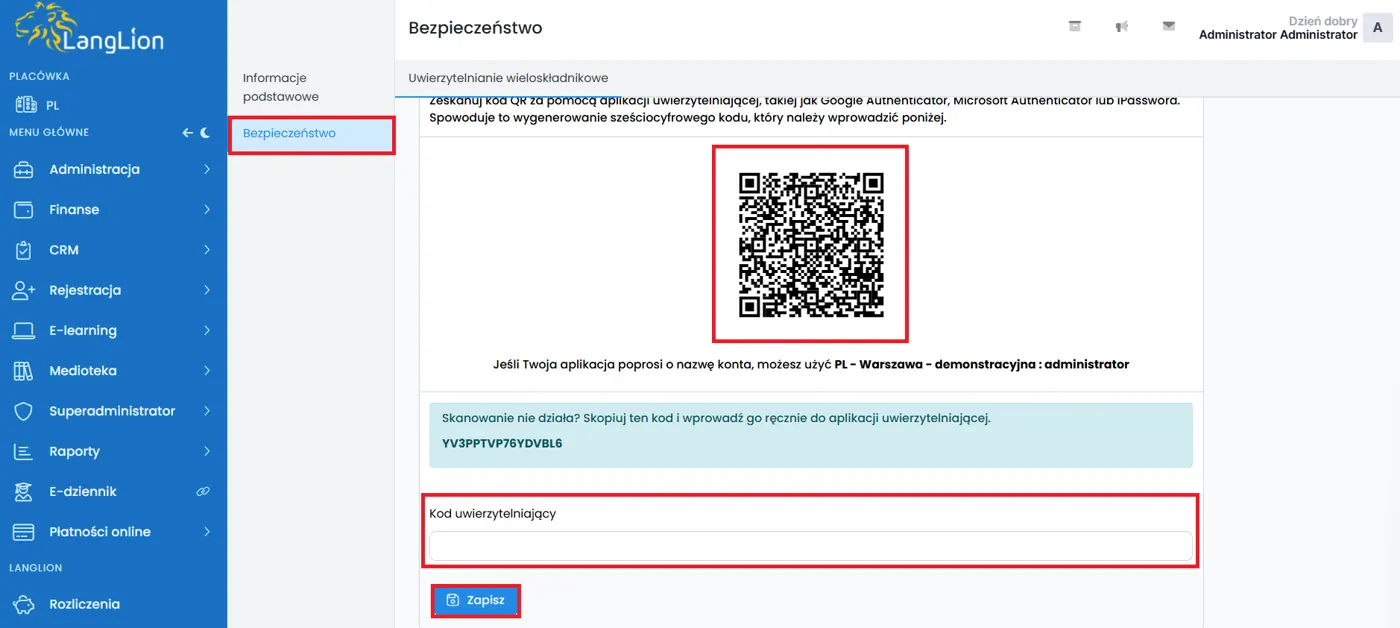
Done! Your profile now has extra protection. Each time you log in, the system will first ask for your login and password and then for the code from the authenticator app.
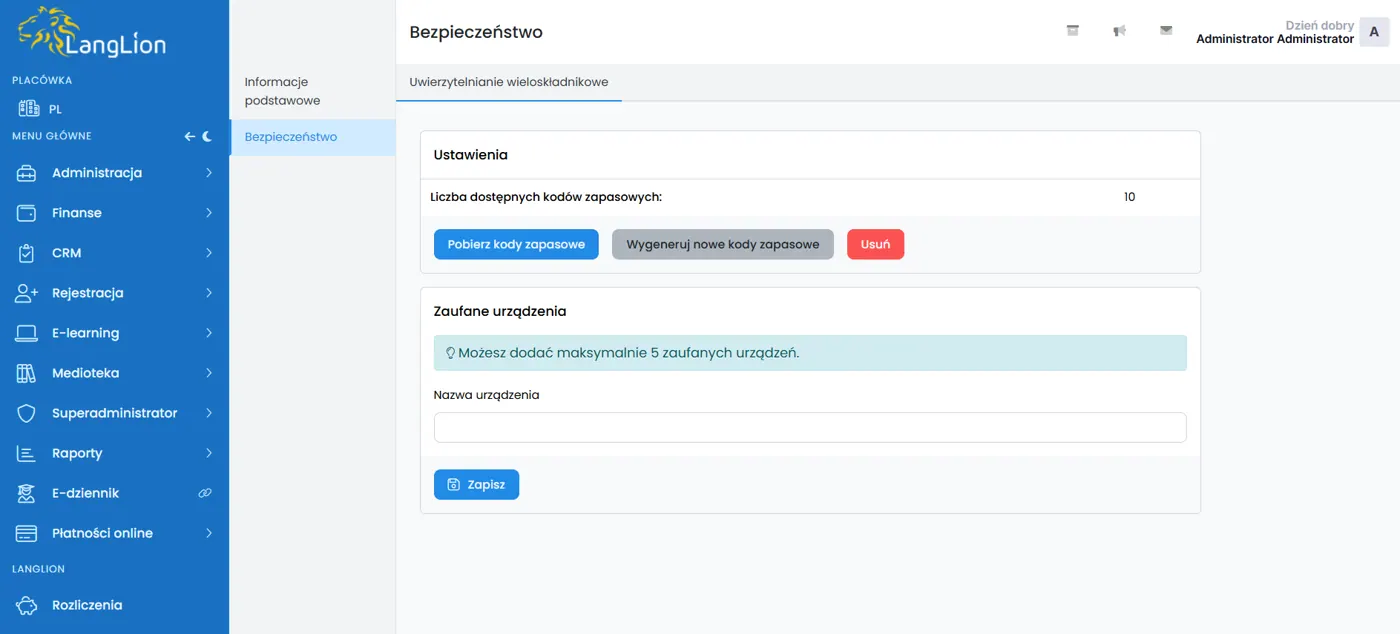
If needed, you can download recovery codes to your device. Just click the “Download recovery codes” button.
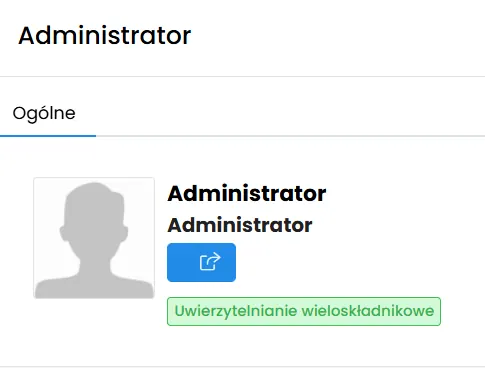
If a user has multi-factor authentication turned on, this information appears in their profile.