
Enrolling at a language school involves signing a language course contract. The LangLion Platform lets you mark a student's contract as signed or not. You can also create a report of contracts that have not been signed yet.
How do I mark the contract status?
If you use e-documents, i.e. you generate the student's contract to be signed online, the system will mark the contract as signed automatically once the student accepts its terms.
If contracts are signed in the traditional way, you need to mark them manually. Simply:
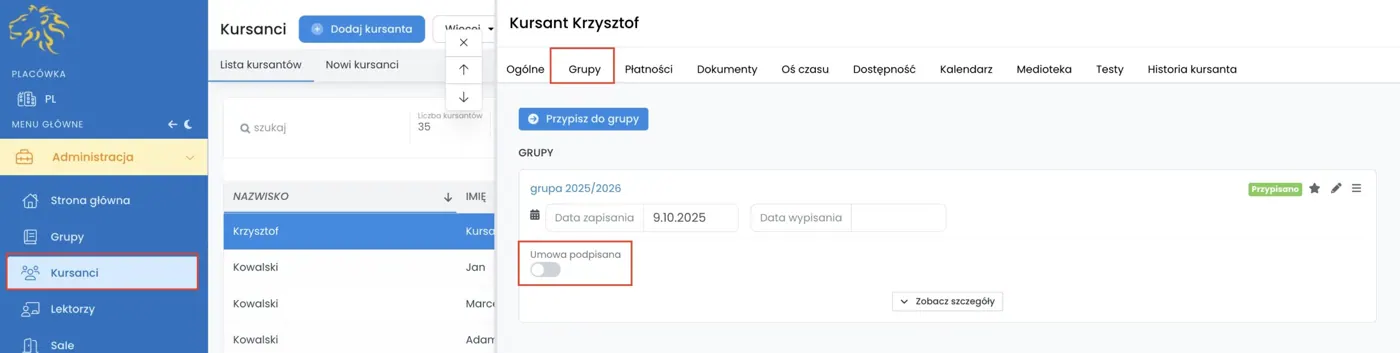
- Go to the "Students" tab.
- Select the right person and go to the "Groups" tab.
- Next to the group name, click the switch, which will change the contract status. The contract signing date will be shown next to the switch, and you can edit it.
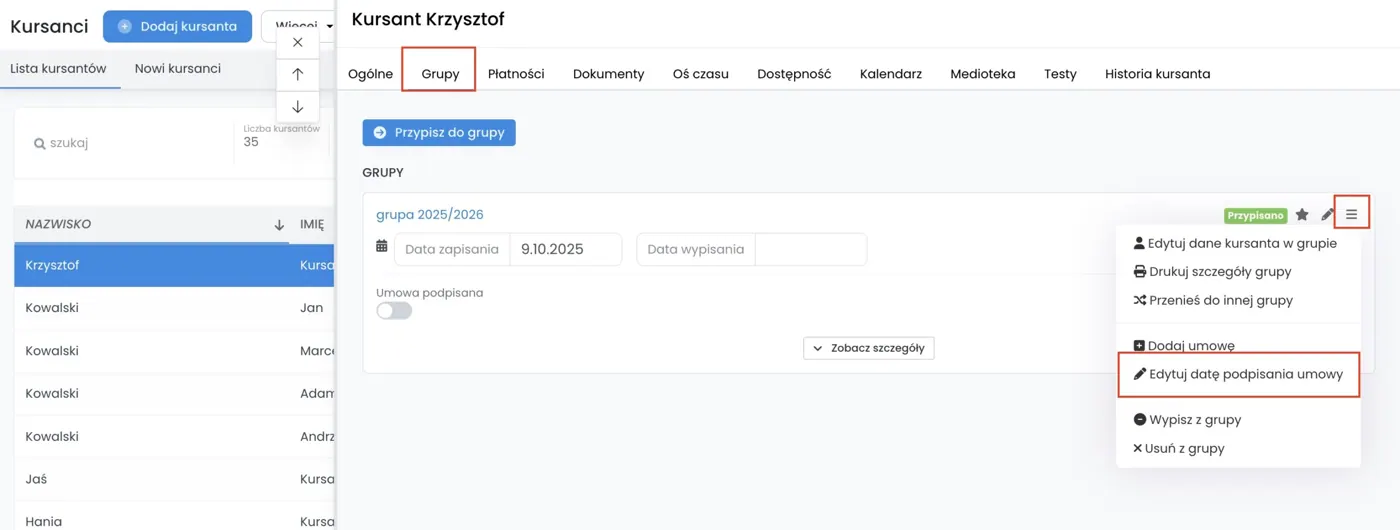
You can always edit the contract signing date. Click "More" and select "Edit contract signing date".
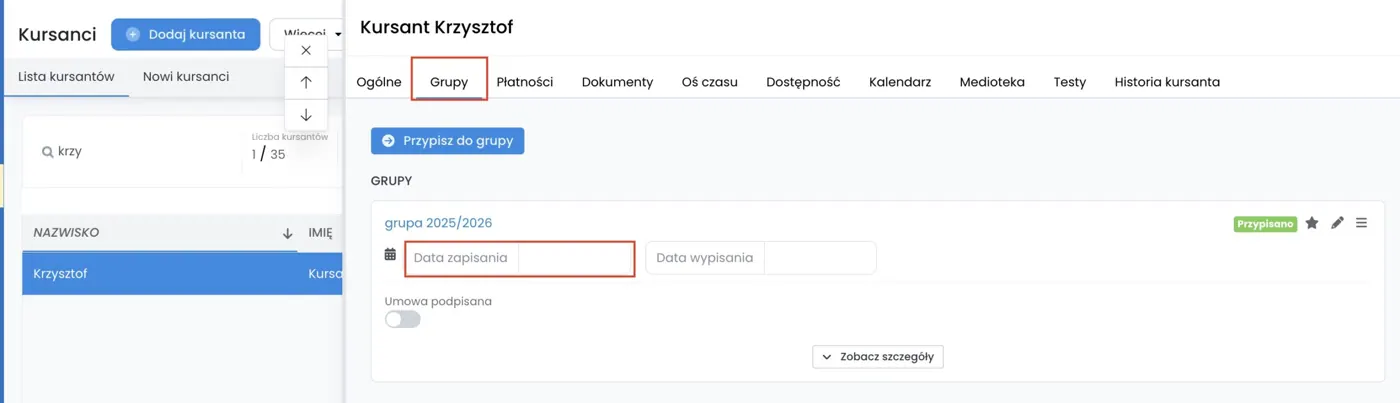
To edit the date the student was enrolled in the group, click the "Enrolment date" field and enter the date.
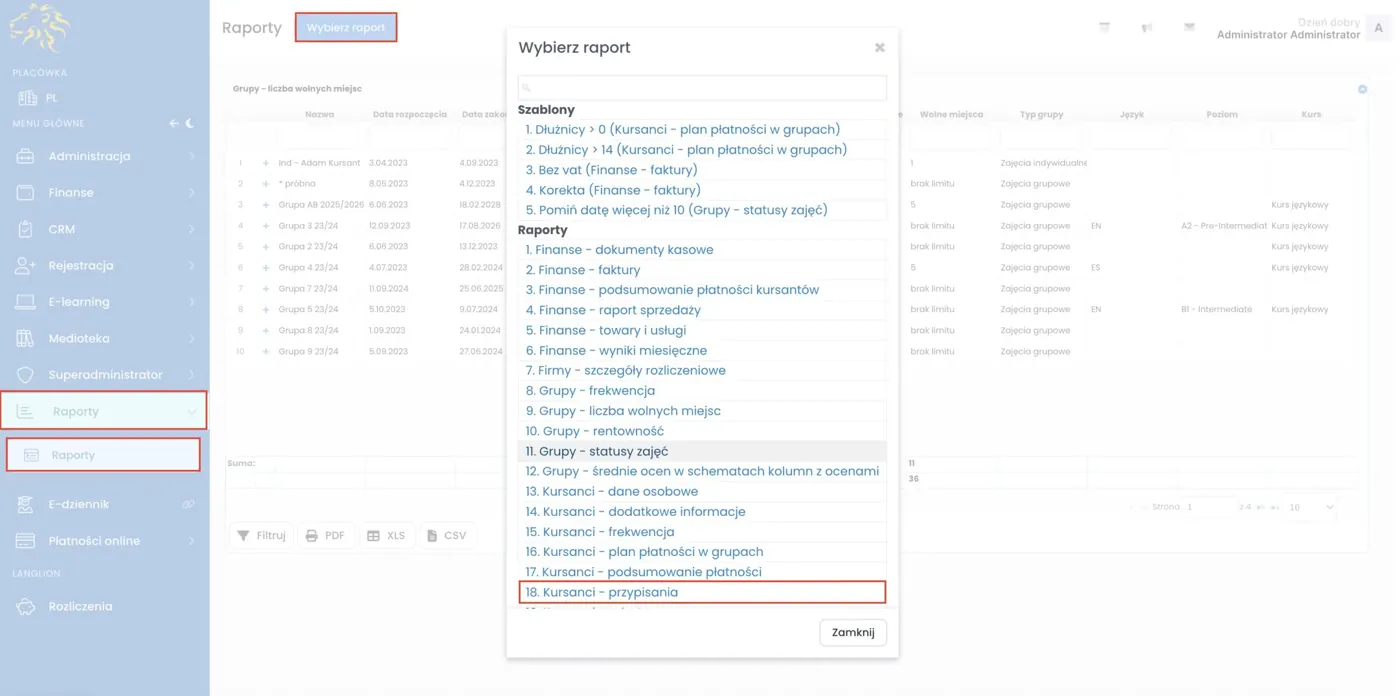
Want to create a report of people who have not signed their contract yet?
It's simple: go to the "Reports" module and click "Select report". Then select "Students - assignments" from the list.
Now choose the filter that shows students who have not signed the contract: in the "Contract signed" column, set the filter to "No".
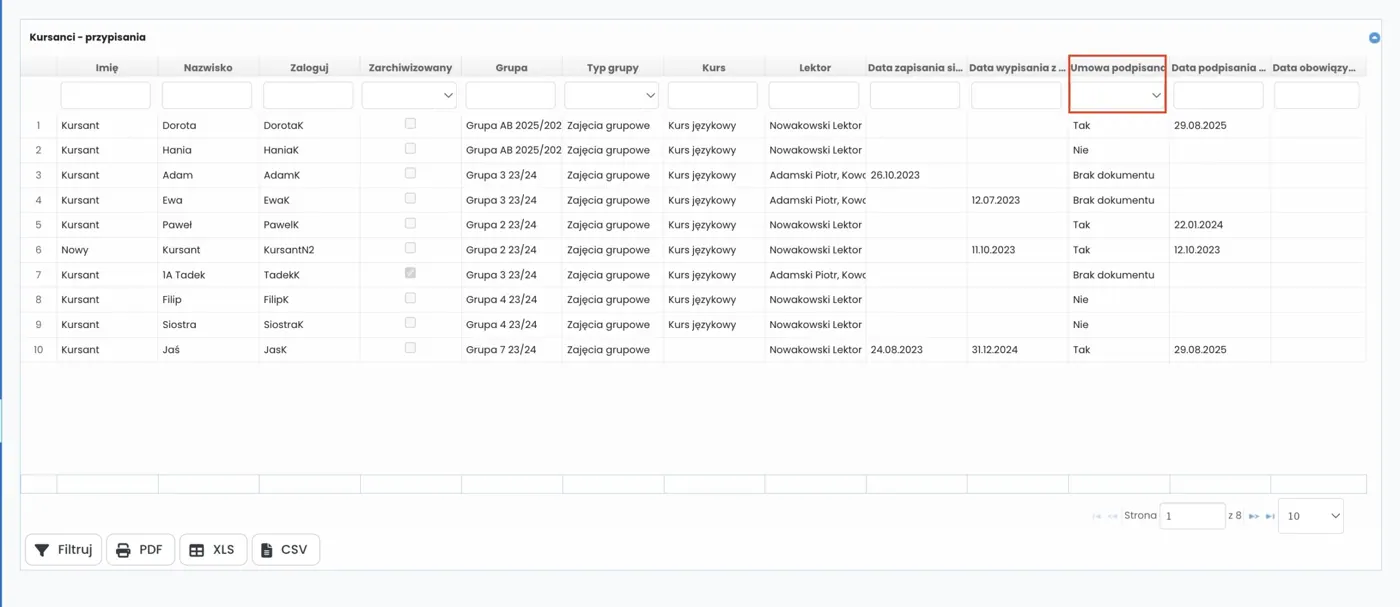
Done, the report of unsigned contracts is ready.