
Sometimes a student cannot follow a fixed course schedule and wants to arrange each meeting from one class to the next. In that case you do not need to generate a dozen classes in advance. You can add classes manually once you have agreed the details with the student.
In the group settings you can choose to calculate classes by the number of classes and enter 1. This way the system will not add any classes, even if someone regenerates them by mistake.
To add single classes to the group's class list, first make sure that in the "Groups" -> "Classes generator" tab you have entered a class template. The generator cannot be empty. Enter a class template there, which you or the teacher will use to add single meetings.
The fields that must be filled in are "Classes", "Day", "Time" and "Duration of lesson". You can use the details of the first class you want to create. We will change them later when adding further meetings.
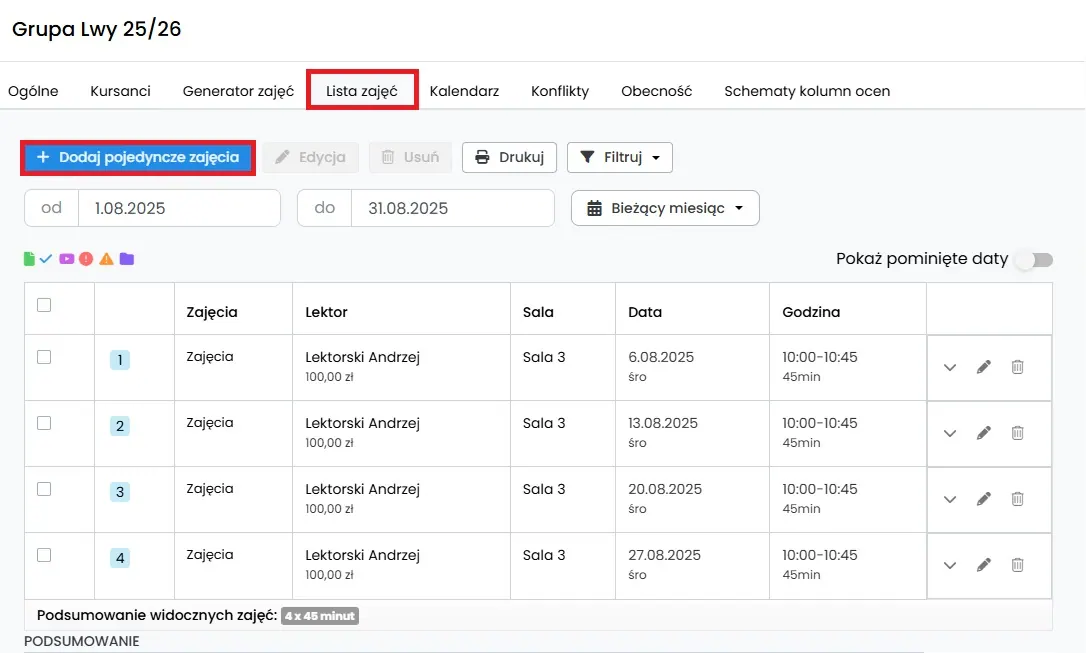
Then go to the "Groups" -> "Class list" tab and click the "Add single class" button.
If you use the new "Lessons beta" tab, you will find the "Add single lesson" button on the bar above the list of lessons.
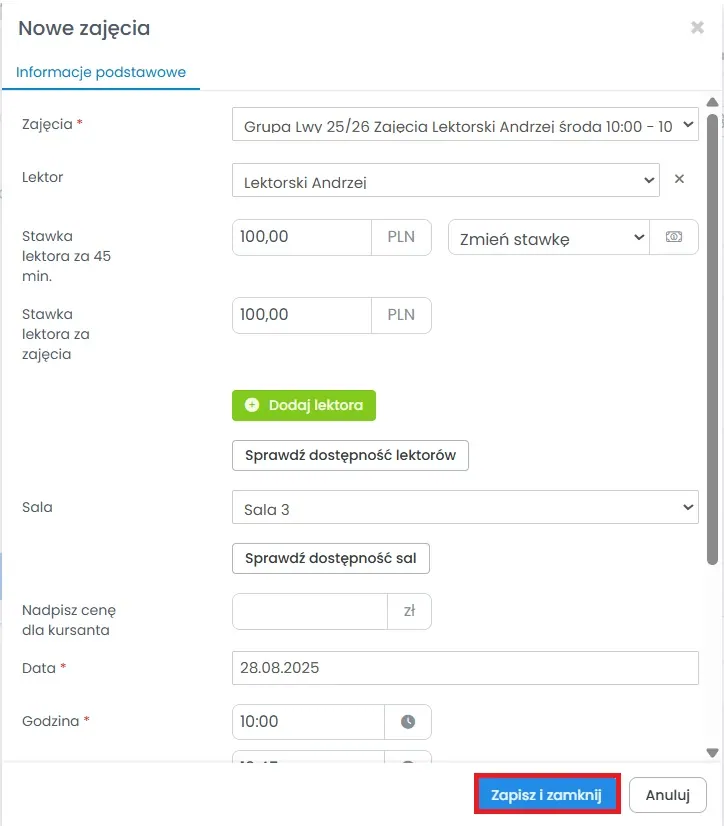
The system fills in the form with the data from the generator template. Enter the missing details and set the date and time of the class. When adding single classes, you can also check the availability of rooms and teachers.
Make sure all the details are entered correctly and save the changes.
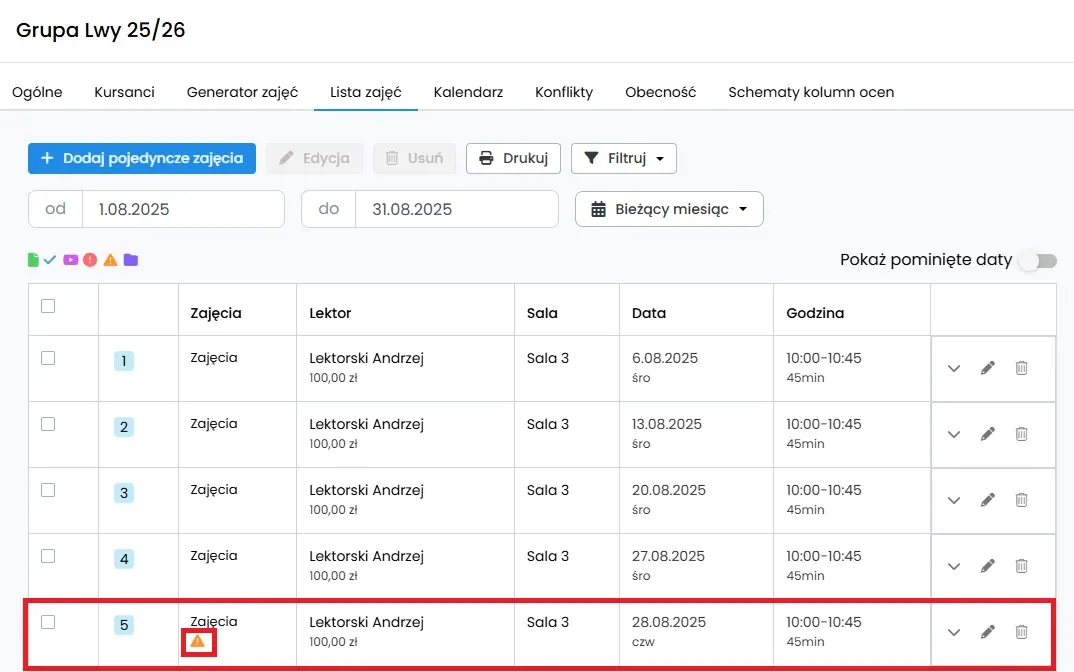
The class now appears on the class list and is marked as modified, which means it was edited manually.
After you add the class, the system will ask whether to regenerate the list. If you confirm the message and you have previously set the group to have one class, nothing will happen. The system will neither add nor remove the class you have just added. If you cancel, nothing will happen either. The class will stay visible in the schedule.
Add each further class in the same way.