
How do I safely delete classes in a group?
Classes are deleted by giving them a classes status. So first create a new classes status. In the "Administration" -> "Settings" -> "Classes"-> "Classes statuses" module, click "Add" and enter the name of the status. Then give it the "Skip date" function, enter the right "% student's fee" and "% teacher's fee" and save the changes.
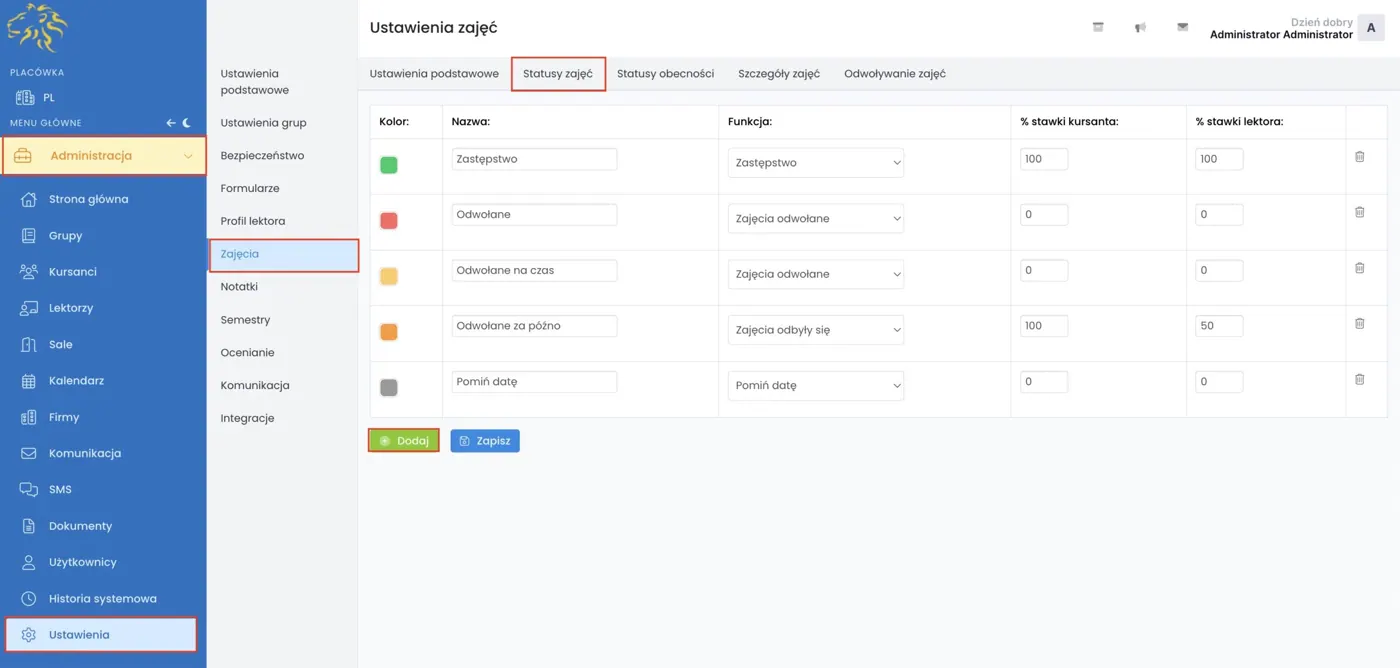
Done, the classes status has been created. Now use it to safely delete the classes you choose.
How do I do it?
The description below applies to the "Lessons" tab. If you only see the "Lessons beta" tab in the group, follow the section “Only have the “Lessons beta” tab?”.
It’s simple. Choose the right group and go to the "Lessons" tab. Then, next to the chosen item, click "Set status of classes" and choose the newly created status from the list.
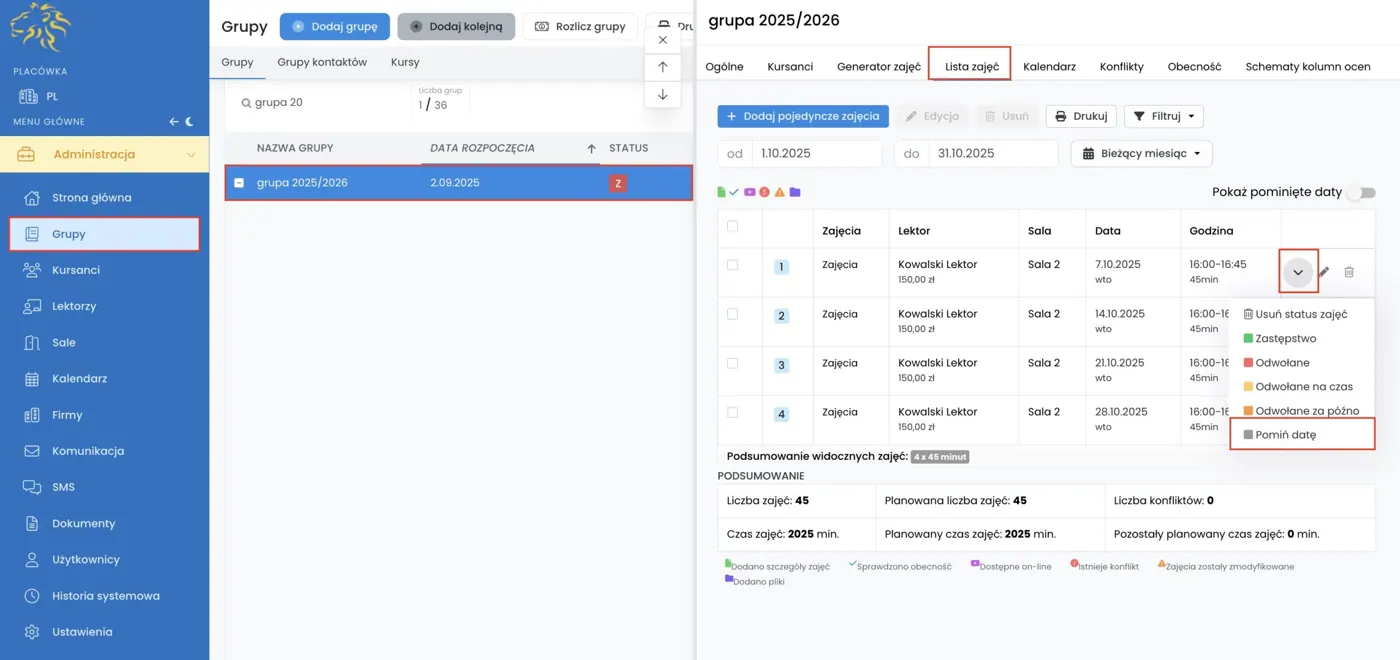
Done, the classes have been deleted. To generate a make-up lesson, the system will show a message asking whether to generate the classes in the group again. Confirm it.
Once the status has been set, the chosen item disappears from the classes list.
You can restore deleted classes at any time if needed.
How can I restore deleted classes?
It’s easy. Just click the "Show skipped dates" filter and the system will add the previously deleted items to the classes list. They will be crossed out. To restore them, remove the status you set. To do this, click the "Set status of classes" menu and choose "Remove status of classes".
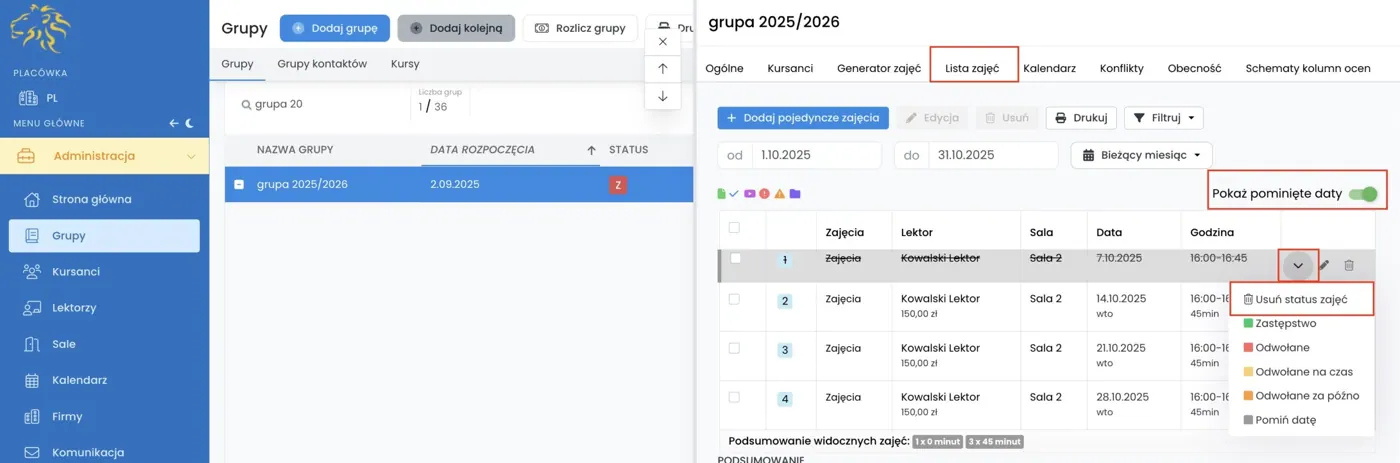
Done, the classes are shown on the classes list again as still to take place. However, because of the changes made, the system has marked them as modified. To see the changes, turn off the "Show skipped dates" filter.
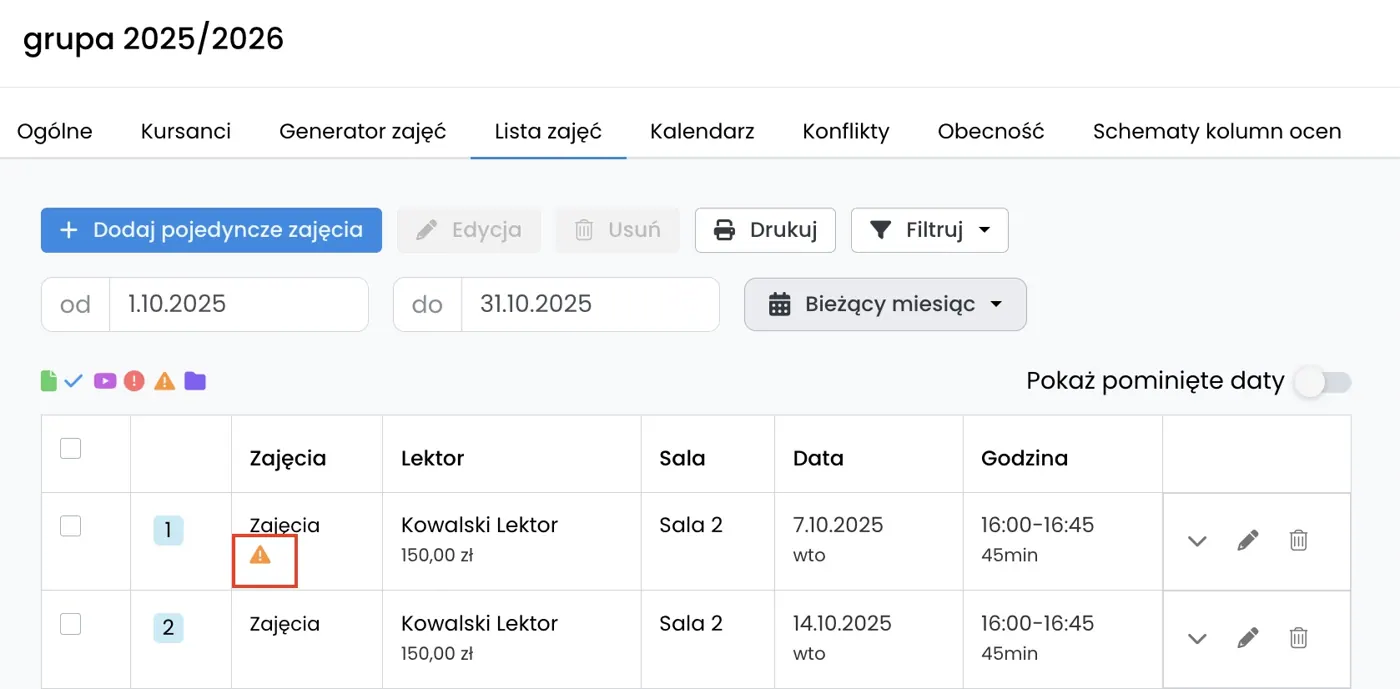
As a safeguard, the classes generator does not make automatic changes to modified classes, so in that case you have to make the changes manually. However, you can remove the modification so that the generator can make automatic changes to the classes again.
How do I do it?
Just click the bin icon and the system will restore new classes without modifications. Confirm generating the classes in the group again.

Done, the empty classes have been restored (they are no longer modified) and the generator can edit them automatically.
Remember: if you delete classes only with the bin icon, without setting a status, the generator will automatically put them back in that place. If classes are to disappear from the classes list, always change their status.
Only have the “Lessons beta” tab?
In the new "Lessons beta" tab, set the classes status like this:
- Choose the group and go to the "Lessons beta" tab.
- Next to the chosen classes, click the "Set status" arrow.
- Choose a status with the "Skip date" function from the list.
Done! The classes disappear from the list. To see them, click "Filters" and tick "Show skipped dates". To restore the classes, click the "Set status" arrow next to them and choose "Remove status".