
You can decide which reports a school employee can see. For example, a person in the school office can see only the attendance reports, while the financial reports stay hidden from them.
Before you start
- You need the “Users management” and “Reports” permissions.
- You can only give an employee the reports that you can see yourself.
- You cannot change your own permissions. Another administrator has to do it.
How do I choose reports for an employee?
- In the “Administration” menu, click “Users”.
- Click the employee on the list.
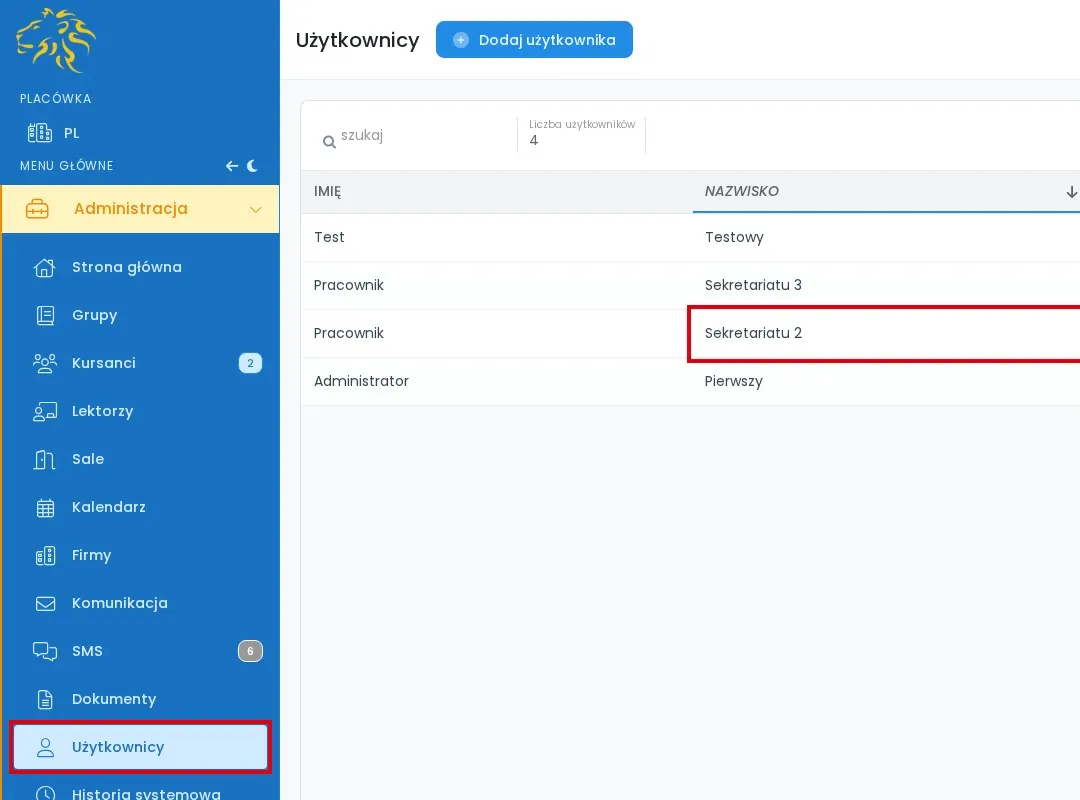
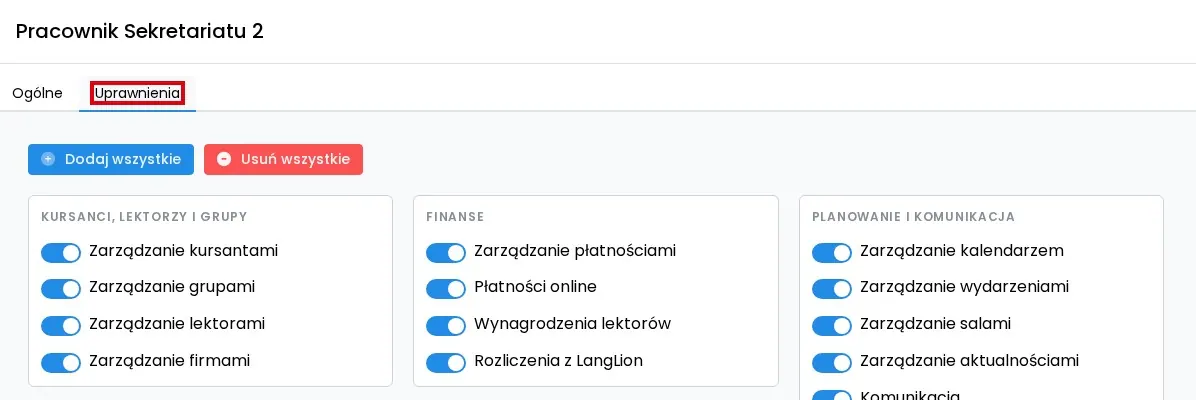
- In the employee panel, open the “Permissions” tab.
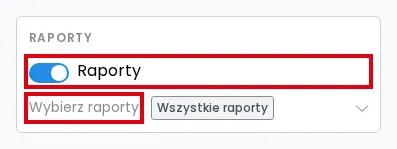
- Find the “Reports” card. Check that the “Reports” switch is on, then click “Select reports”.
- In the list that opens, switch on the reports the employee should see. Each change is saved straight away, so you do not need to save anything.
- Check the counter next to “Select reports”. It shows how many reports you have selected, e.g. “2 / 31”.
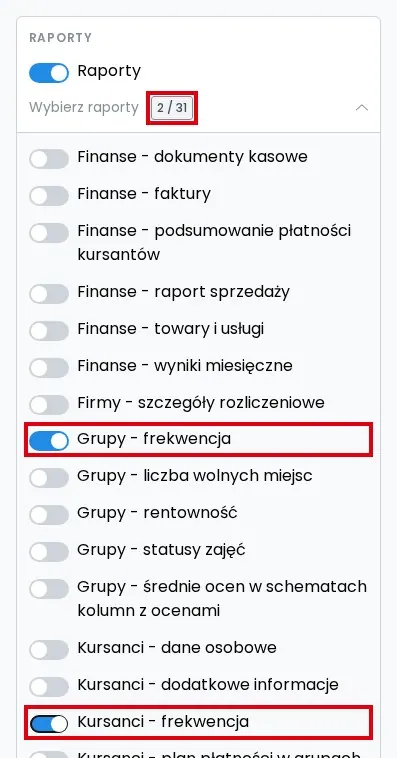
Done! In “Reports”, the employee will see only the selected reports. They also cannot download other reports as PDF, XLS or CSV.
If the employee is logged in right now, the restriction will start to work when they log in again. Once the restriction is active, further changes to the list of reports take effect immediately.
What does the counter next to “Select reports” mean?
- “All reports”: no report is selected, so the employee sees all reports available under their permissions.
- “2 / 31”: the employee sees only the 2 selected reports. The second number is the total number of reports you can give.
- “Empty”: the employee has a restriction but no reports. Switch on the reports they should see.
How do I restore access to all reports?
Switch off all reports in the list under “Select reports”. The counter will show “All reports”. The employee will see all reports again when they log in again. Until then, their list of reports may be empty.The employee should not see any reports?
Switch off the “Reports” switch on the “Reports” card. When the employee logs in again, the reports module will disappear from their menu.Frequently asked questions
Will the employee see report templates?
Yes, but only templates created from the reports you selected for them.
Does the restriction apply to the superadministrator?
No. The superadministrator always sees all reports.
Will the statistics on the home page disappear too?
No. The restriction applies only to the “Reports” module.
Where can I check who changed access to reports?
In “Administration” → “System history”. The changes are recorded there as “Report access”.
What if I only have access to selected reports myself?
You can give others only your own reports. Anyone you switch “Reports” on for will also get the restriction.
What do “Add all” and “Remove all” do?
“Add all” gives all permissions and removes the report restriction. “Remove all” takes away all permissions, including “Reports”.