
A company account lets the company manager keep track of employees' progress. For the manager to do this, students and groups must be assigned to the company. If students' grades and attendance are not showing on the company account, the most likely reason is that the students have not been assigned. So assign the students to the company.
How do I assign a student to a company?
There are two simple ways to do this.
The first way:
1. Select a student from the list in the "Students" tab,
2. Go to the "General" tab and click "Edit".
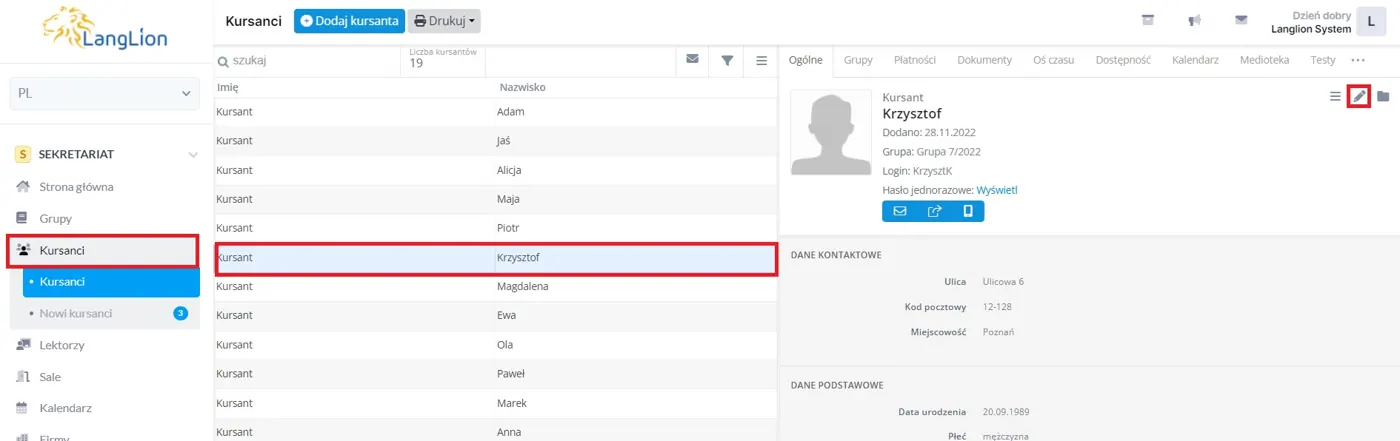
3. In the student edit form, find the "Company" field and select the right company from the list.
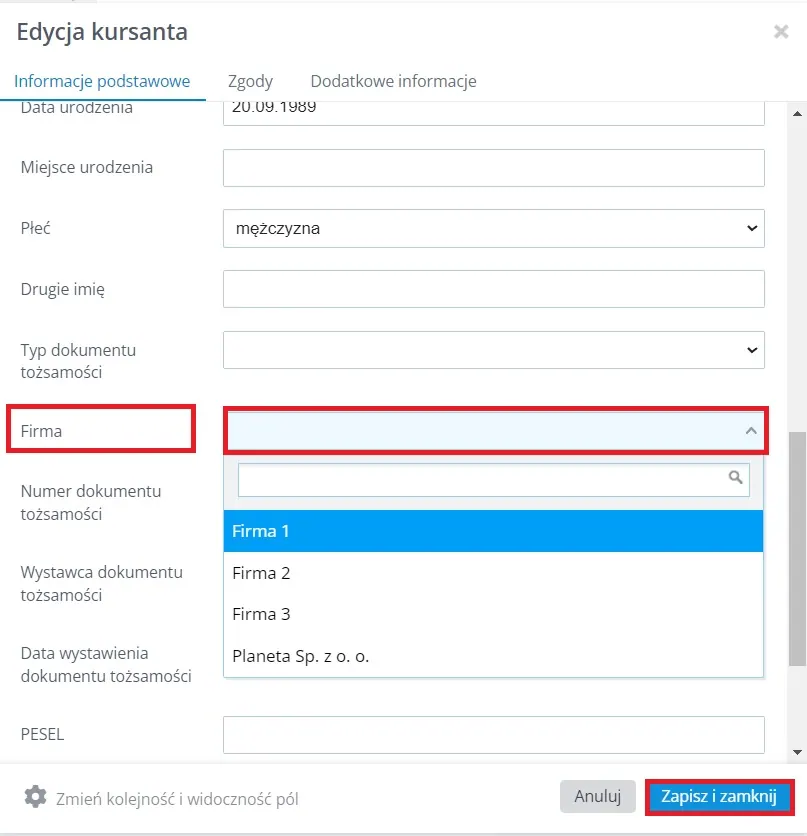
4. After selecting the company, click "Save and close".
Done – the student has been assigned to the company.
You can also assign a student to a company in a slightly different way.
1. Select a company in the "Companies" tab and go to the "Students" tab.
2. Click the "Assign students" button.
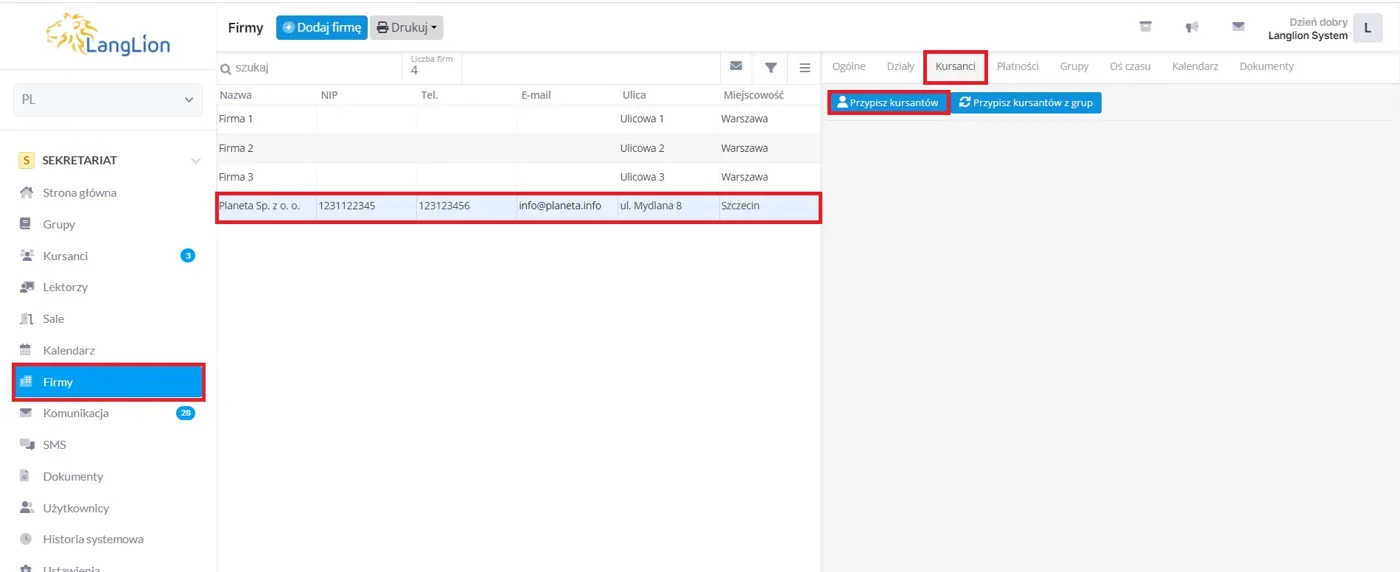
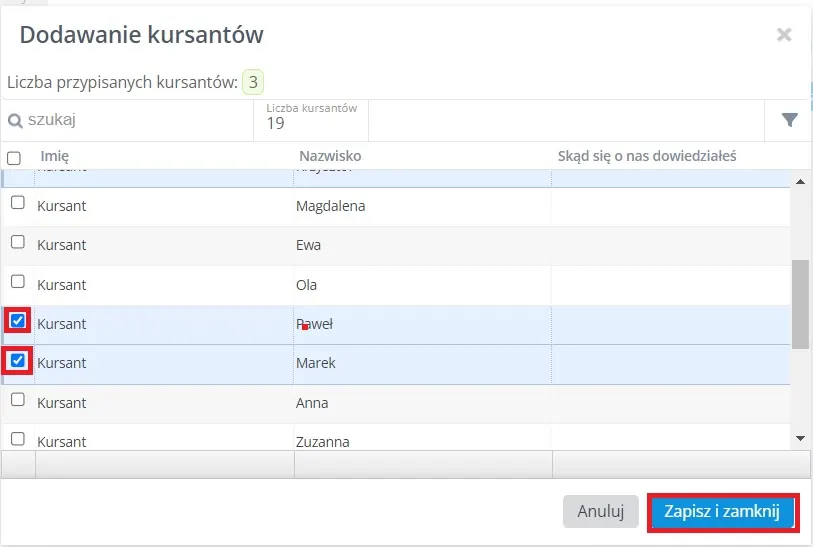
3. Tick the right people in the list and click "Save and close" to save the changes.
If the company already has groups assigned, instead of picking people by hand you can click "Assign students from groups" and confirm – the system will assign all students from the company's groups to the company.
Done – the students have been assigned using the second method. From now on, the manager will be able to see the students' attendance and grades.