
When you keep records of cash transactions, you can create cash registers to which these documents are assigned. This lets you keep track of the money coming in and going out of each cash register. To make sure cash transactions go to the right cash register, mark it as the default one.
If you create more than one cash register and do not mark any of them as default, the system will ask you to choose a cash register every time you add a cash transaction.
To have the system assign payments to a selected cash register, mark it as default.
How do I do this?
It's easy – go to the "Finance" module and select the "Cash transactions" tab. Then select the cash register from the drop-down list and click the tick icon "Set as default".
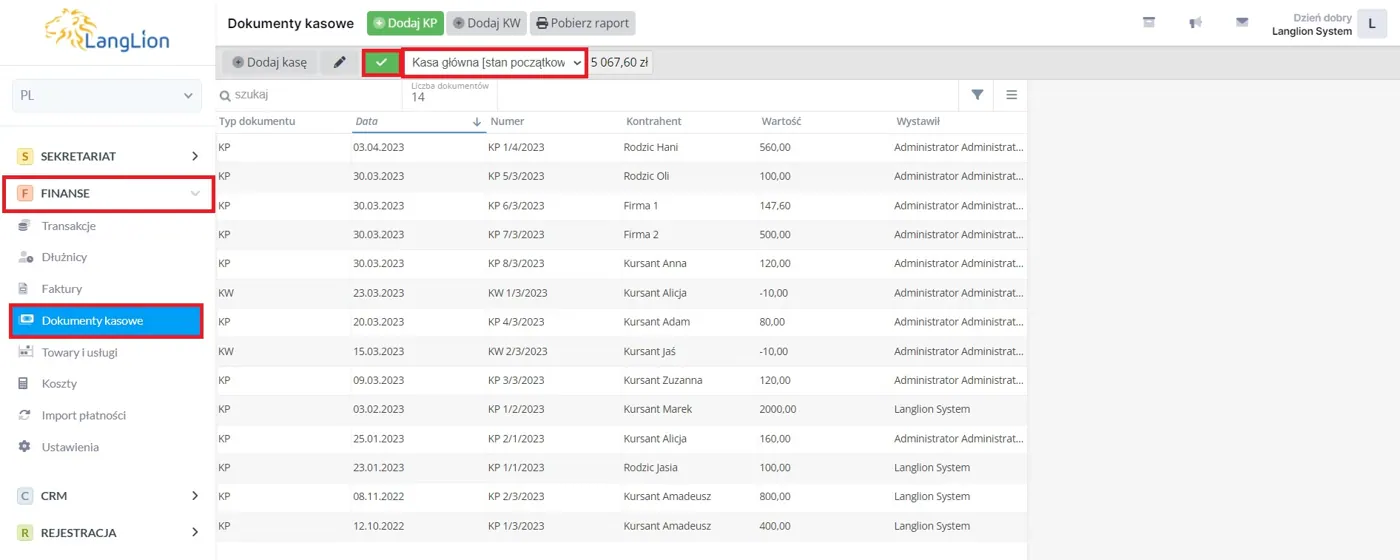
Done – from now on, the system will assign payments to the default cash register. When you add a cash transaction, this cash register will be selected automatically, so you won't have to choose it every time.
Also set a default cash register for cash transactions that are created automatically, e.g. after a student's payment is saved.
How do I do this?
Nothing difficult – just:
1. Go to "Settings" of the "Finance" module and select the "Payment forms" tab.
2. For a payment form that has "Transaction" or "Invoice" in the "Confirmed with cash transaction" column, choose the cash register in the "Select default cash" field.
3. Save the changes.
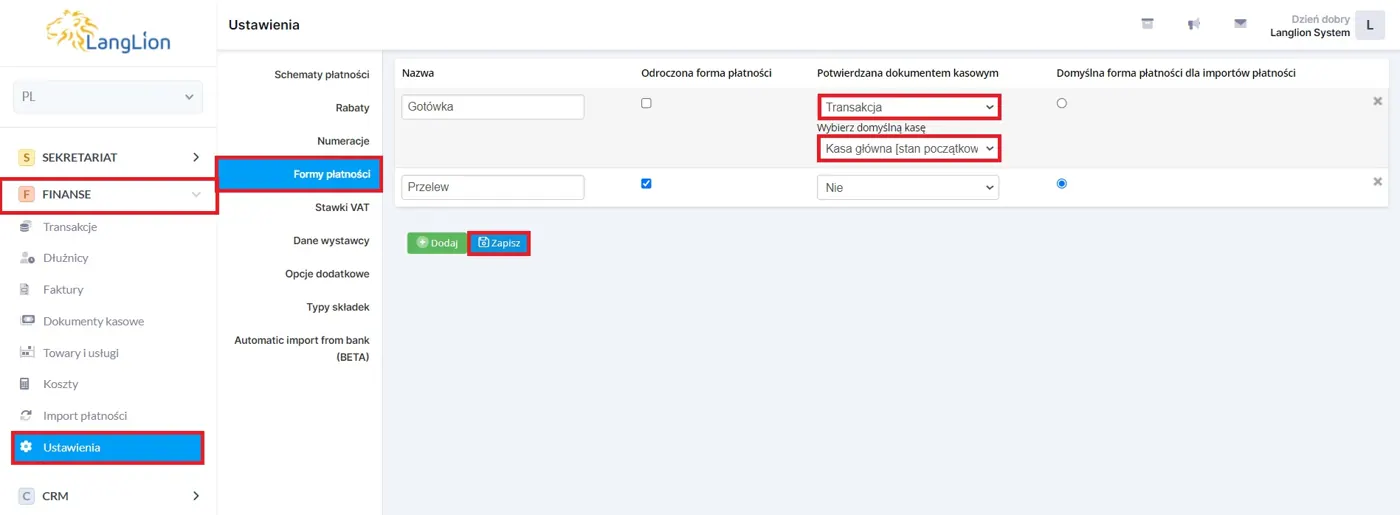
Done – from now on, automatically generated cash transactions will also go to the default cash register.