
You can do this easily. First, add the rate to the teacher’s list of rates.
How do I add a teacher’s rate?
Go to “Administration” → “Teachers” → “Salaries”, choose the teacher and open the "Rates" tab. Click "Add", enter the new rate and click "Save".
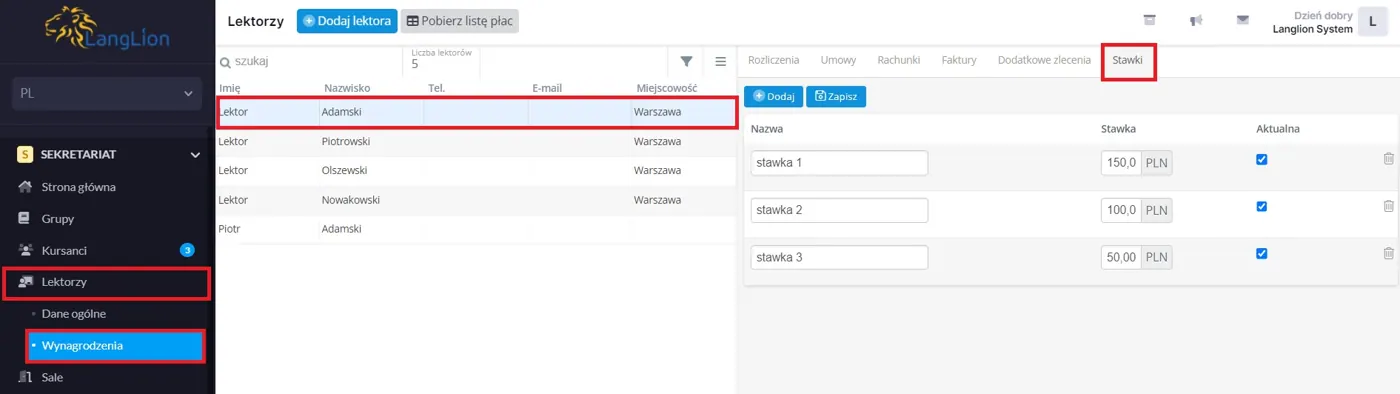
Done, the rate has been added. Now assign it to the lessons in the group. To do this, go to the group’s "Classes generator" tab. Then edit the defined classes with the old rate.
If you don’t see the “Classes generator” tab in the group, use the “Lessons beta” tab.
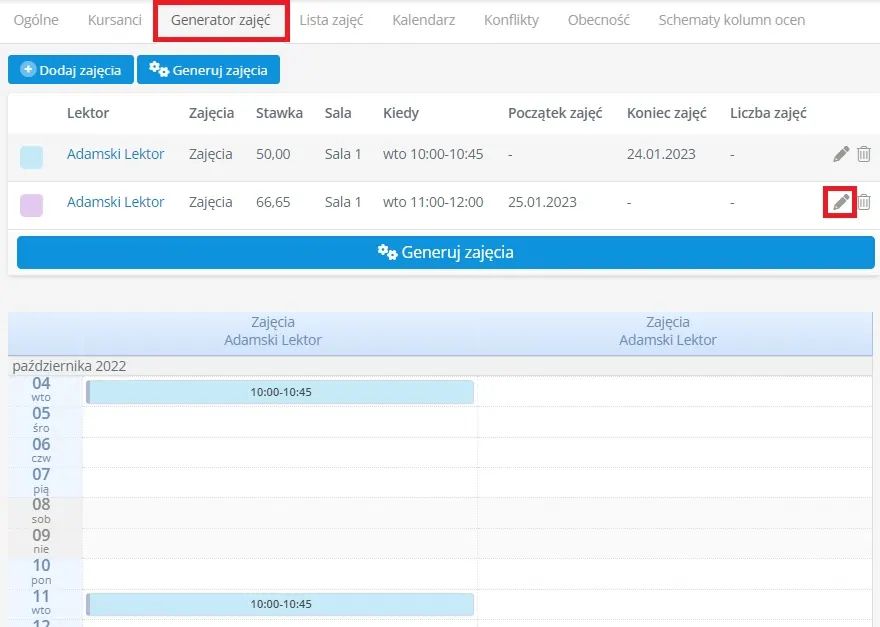
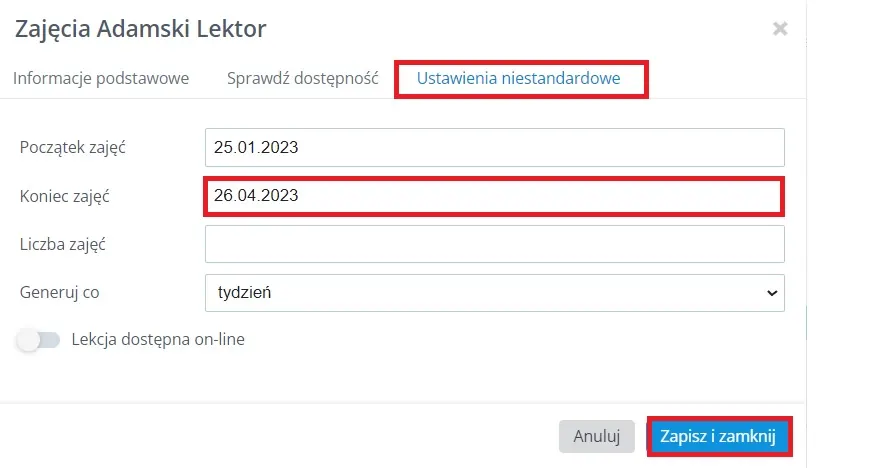
Go to the "Custom settings" tab and enter the end date of the classes with the old rate. When you have made the changes, click "Save and close".
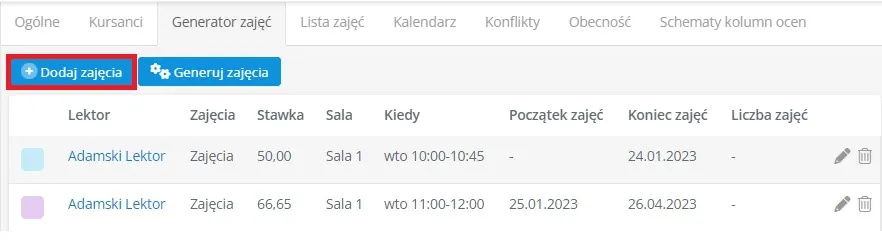
Then, in the "Classes generator" tab, click the "Add classes" button.
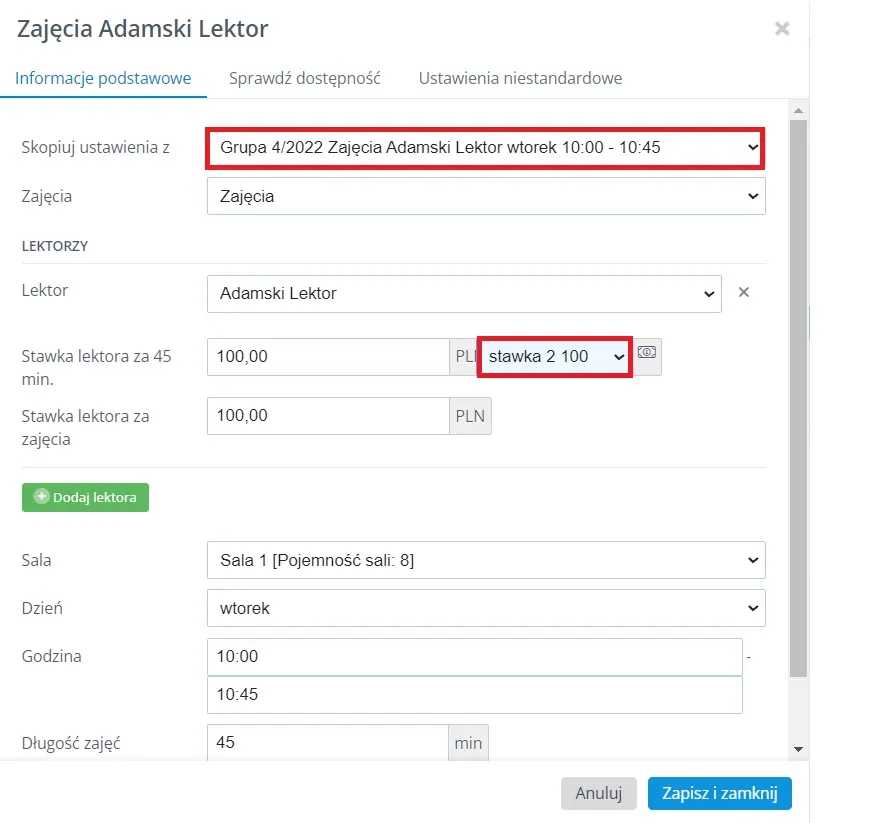
It’s worth using the "Copy settings from" option, which lets you quickly fill in the new classes form with the details of the classes with the old rate.
After copying the details, you only need to change the rate to the new one.
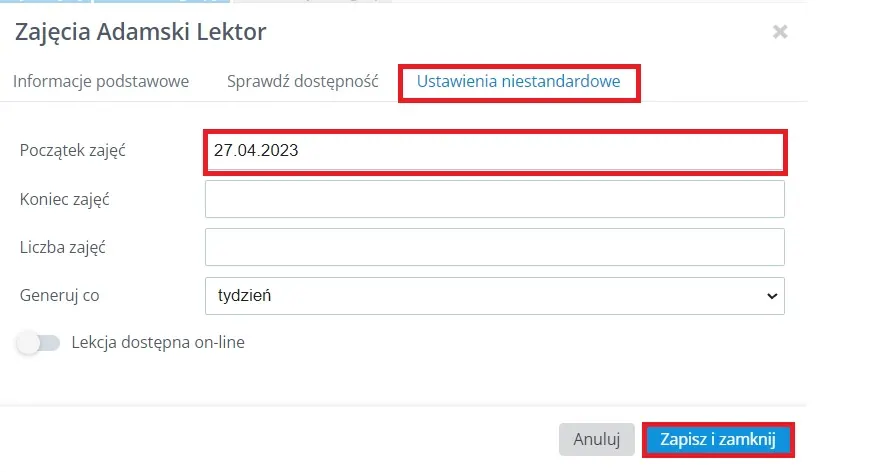
Next, in the "Custom settings" tab, enter the start date of the classes with the new rate and save the changes.
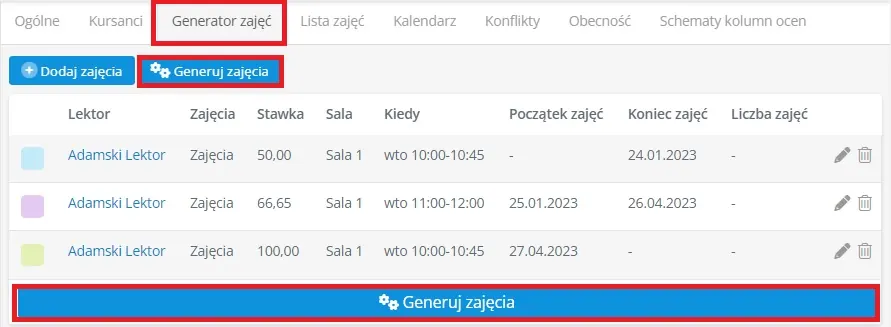
Now just click the "Generate classes" button to apply the changes to the "Classes list".
In modified classes you have to make the changes manually.
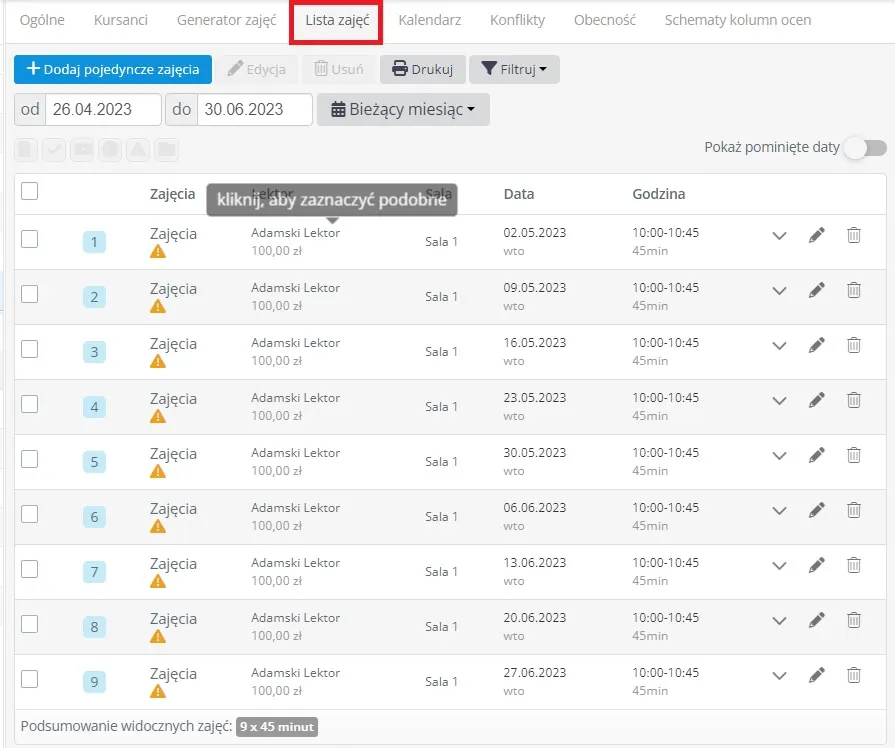
Done, the teacher’s rate has been changed.