
You can issue an invoice to a company for classes taken by a student. To do this, first add the company to the LangLion Platform.
How do I add a company?
It's easy: click the "Companies" tab in the "Admin" module and click the "Add company" button.
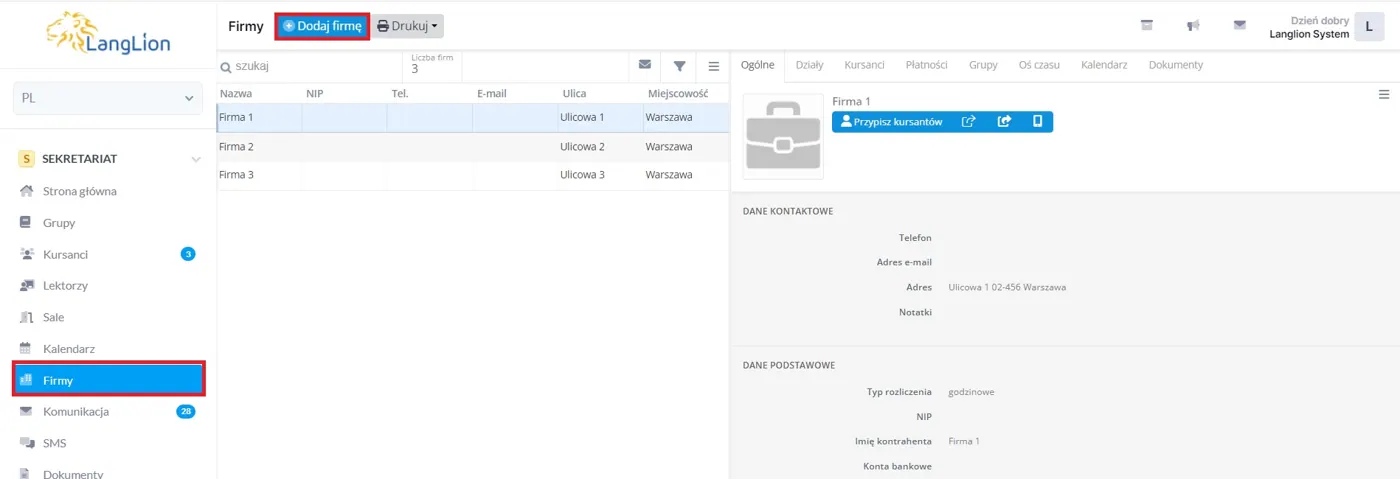
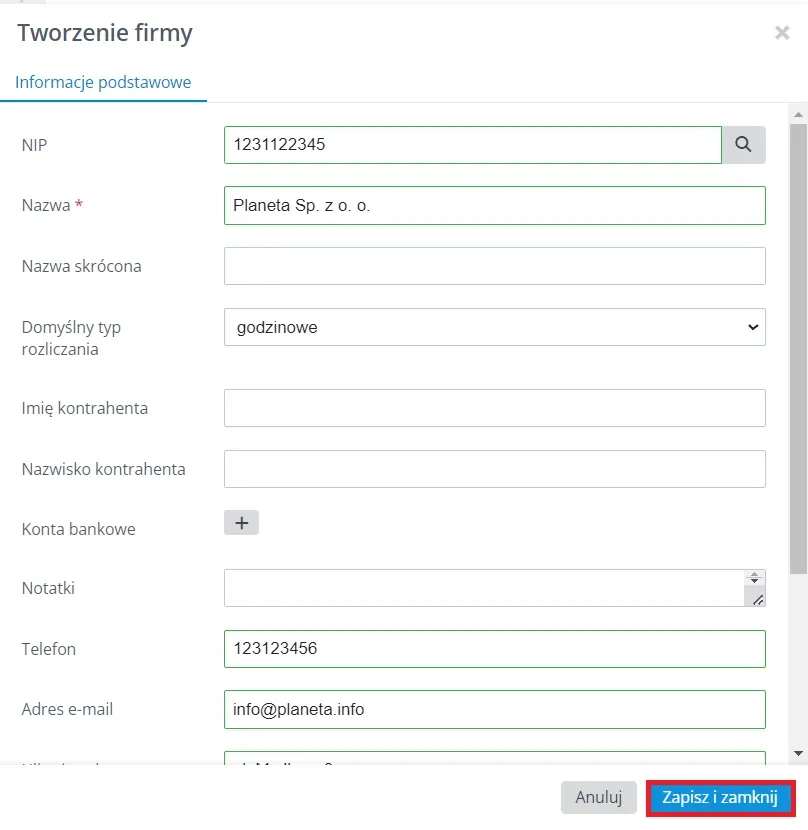
Then fill in the company details in the window that opens.
Next, assign the company to the student. To do this, find the student on the list of students and edit their details using the "Edit" option.
Then click the "Company" field to open the company search. Select the right company and save the changes.
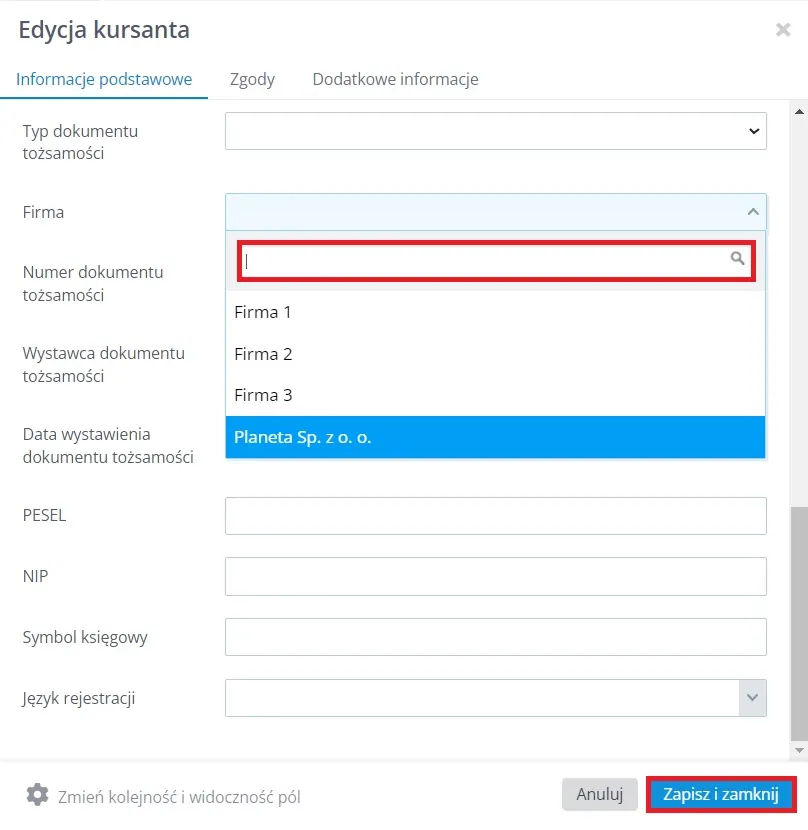
Done – the company is now assigned to the student. You can now issue an invoice to the company for the classes taken by the student.
To do this, in the student's "Payments" tab open the drop-down arrow next to the "Add transaction" button and choose "Issue invoice to the company", "Issue an invoice without VAT to company" or "Issue proforma invoice to the company". These options appear only after a company is assigned to the student (the "without VAT" and proforma options – when these invoice types are enabled in the settings).
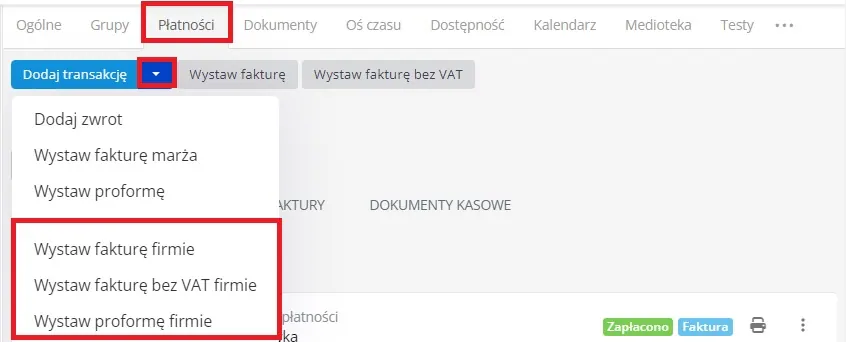
The company details will appear in the buyer details in the invoice editing window.
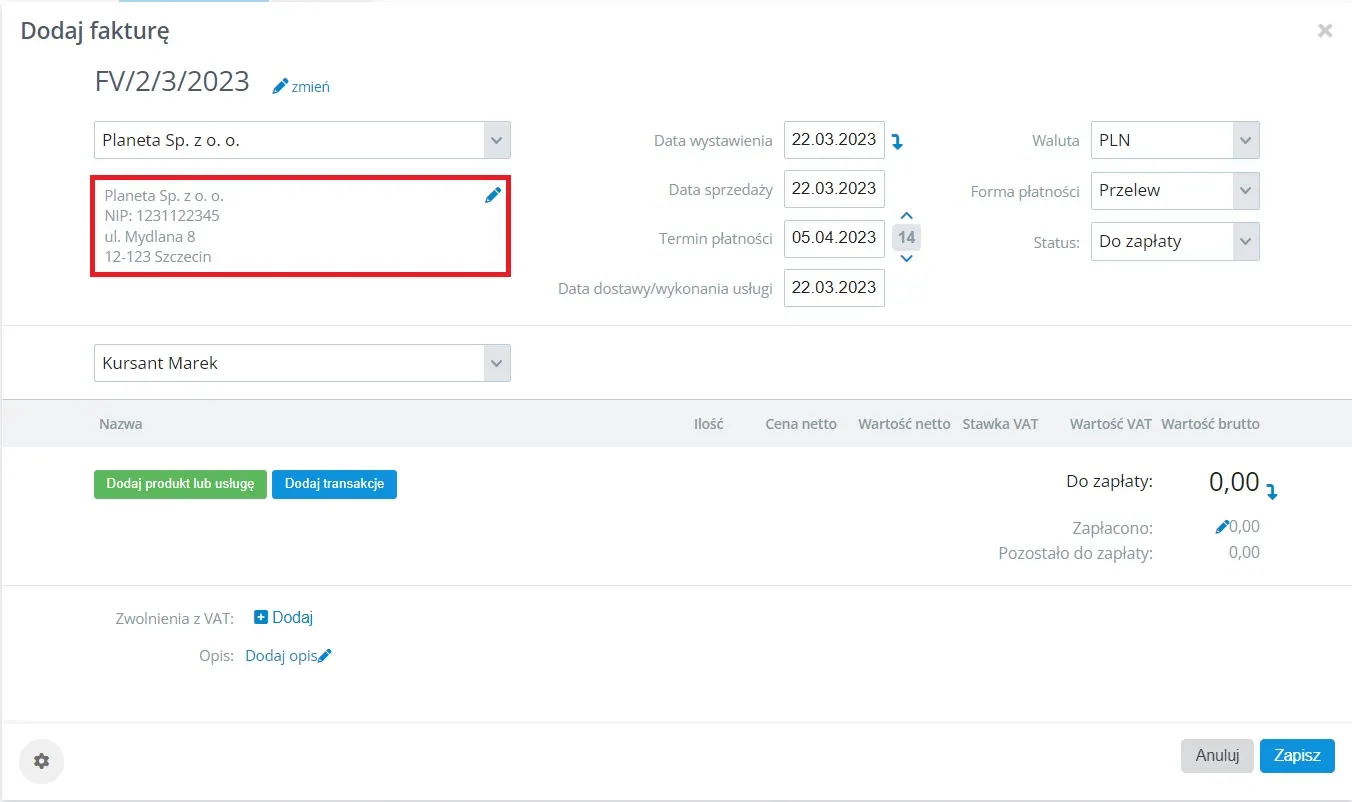
An invoice issued this way will not be visible in the Payments tab in the student panel. It will be linked to the company account.
If you want the student to be able to download the invoice from their panel, use the "Edit billing data" option in the "More" menu on the student's page, enter the company details there, and then issue invoices as you would for any other student, using the "Issue an invoice", "Issue an invoice without VAT" or "Issue proforma invoice" options.