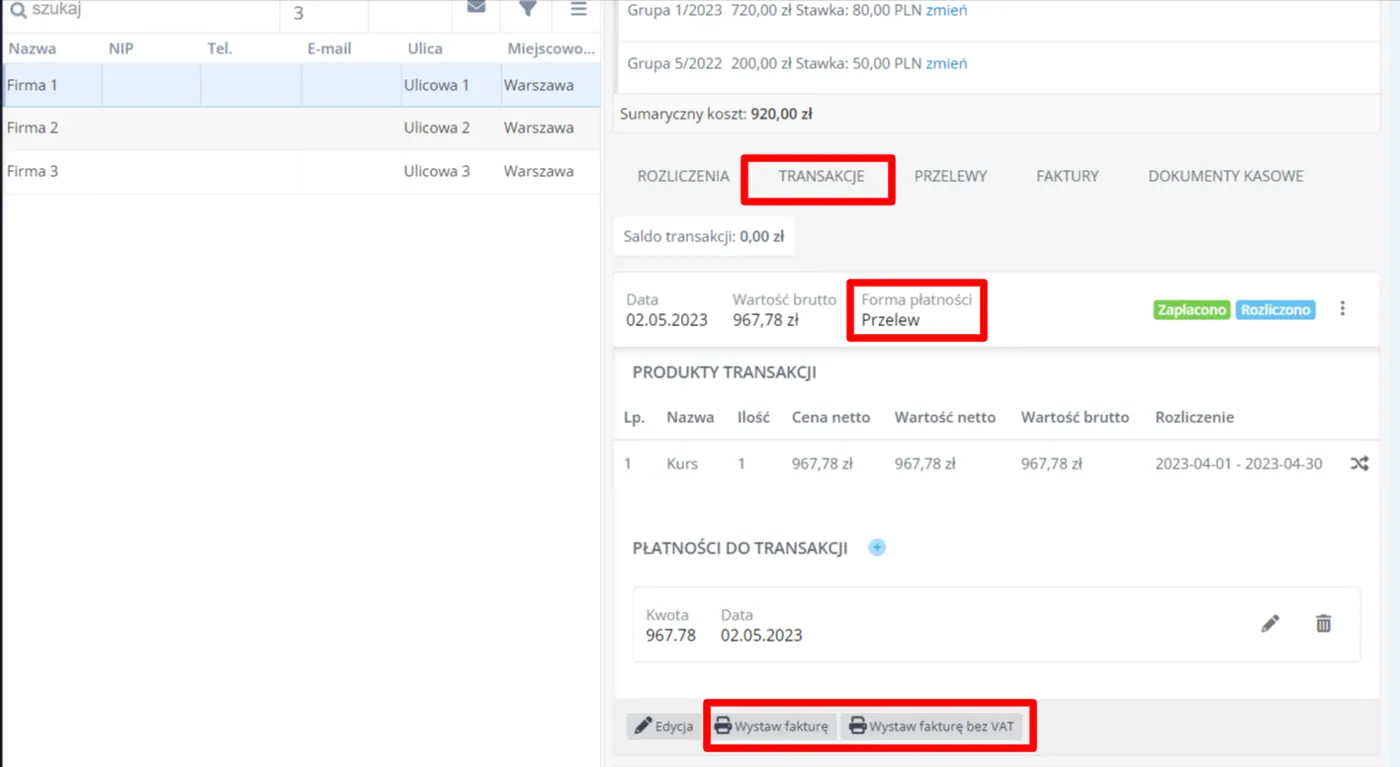
Most likely, the wrong form of payment was selected when issuing the invoice, and it does not match the form of payment assigned to the transaction.
When you add a payment to the system, you choose a form of payment for the transaction. For the transaction to be visible in the invoice editing window, select the same form of payment as the one assigned to the transaction.
So, when the message above appears, check which form of payment was assigned to the transaction, click the "Issue an invoice" or "Issue an invoice without VAT" button and select the same form of payment in the invoice window.
The message also appears when all items of the student's transactions have already been invoiced – the invoice window shows only transactions with items that have not been invoiced yet.